¶ App Properties
This section explains how to manage an application’s main properties from within Pyplan.
To open the properties dialog, we click the three‑dot menu to the right of the application name in the top bar and choose App properties.
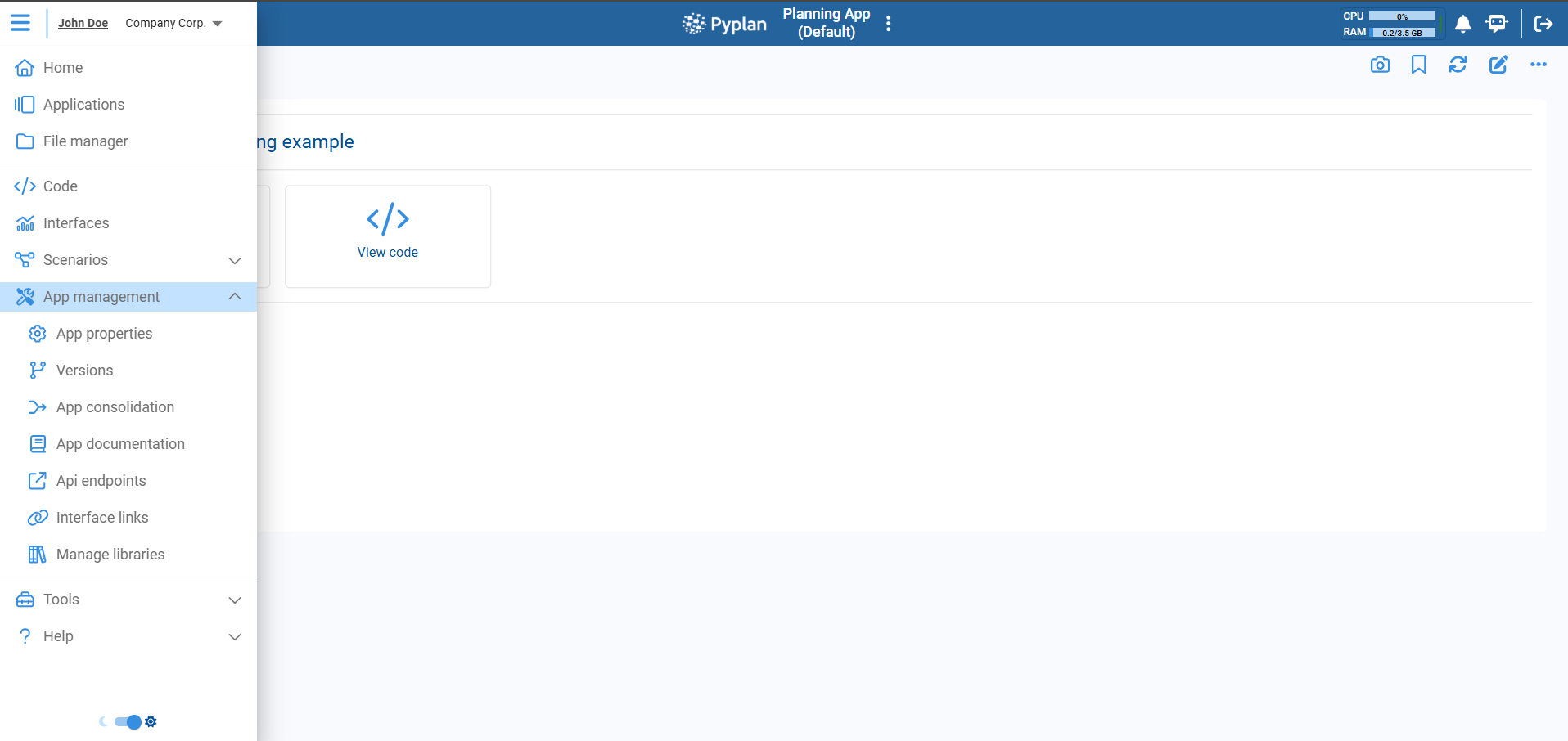
The dialog opens with several tabs (as shown in the images):
- Summary
- Default interface
- App configuration
- Additional information
¶ Summary
The Summary tab provides a read‑only overview of key application properties.
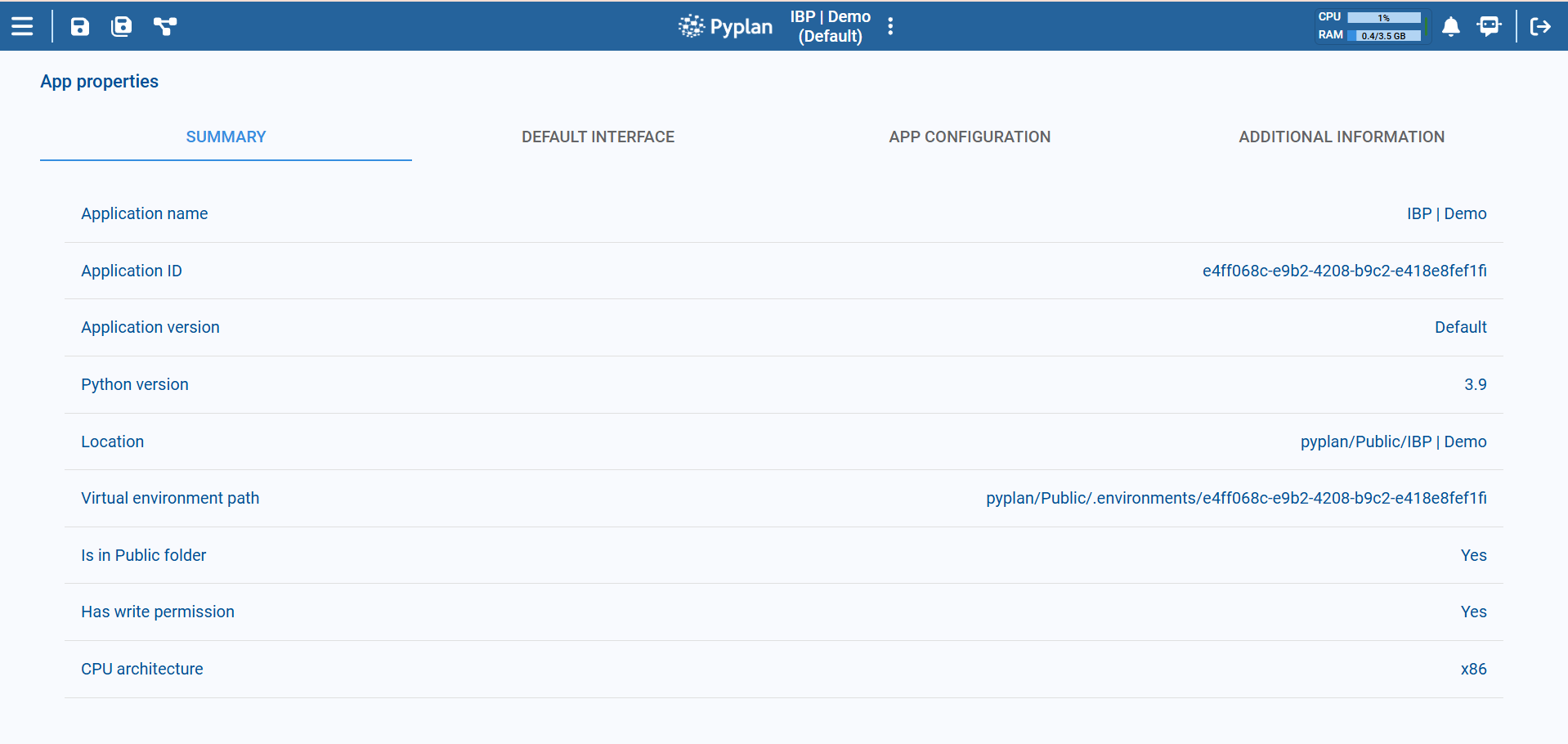
Application name
The name of the application. It corresponds to the folder that contains the app and its app.ppl file.
Application ID
Unique identifier of the application. This ID is used to link several related elements:
The virtual environment used by the app.
Workflow processes.
Module and interface access restrictions by department.
Assistant bots that use the OpenAI framework.
Thumbnail images for the app.
Application version
Name of the currently open version (for example, Default).
Python version
Python version configured for this app (for example, 3.9).
Location
File system path where the app folder is stored (for example, pyplan/Public/IBP | Demo).
Virtual environment path
Path to the virtual environment associated with this Application ID.
Is in Public folder
Indicates whether the app is under the Public workspace.
Has write permission
Shows whether the current user has write permissions in the app folder.
CPU architecture
CPU architecture used to run the app, such as x86 or ARM. This is configured at department level.
¶ Default interface
The Default interface tab lets us choose which interface is opened first when users open the application.
At the top, we see the message “Select the default interface for the application” and a table with two columns:
- Departments
- Interface
Here we configure:
- A default interface for All users (e.g.
Menu). - Optional overrides for specific departments. For example:
All→MenuData Analytics→Operations
With this setup:
- A user in the Data Analytics department will see the Operations interface when opening the app.
- A user from any other department will see the Menu interface.
We can add rows for more departments or remove them using the trash icon.
At the bottom, the Save button stores the configuration.
Ideally, the default interface should contain a Menu component so users can navigate to the rest of the interfaces in the app.
¶ App configuration
The App configuration tab lets us change technical and behavioral settings for the application.
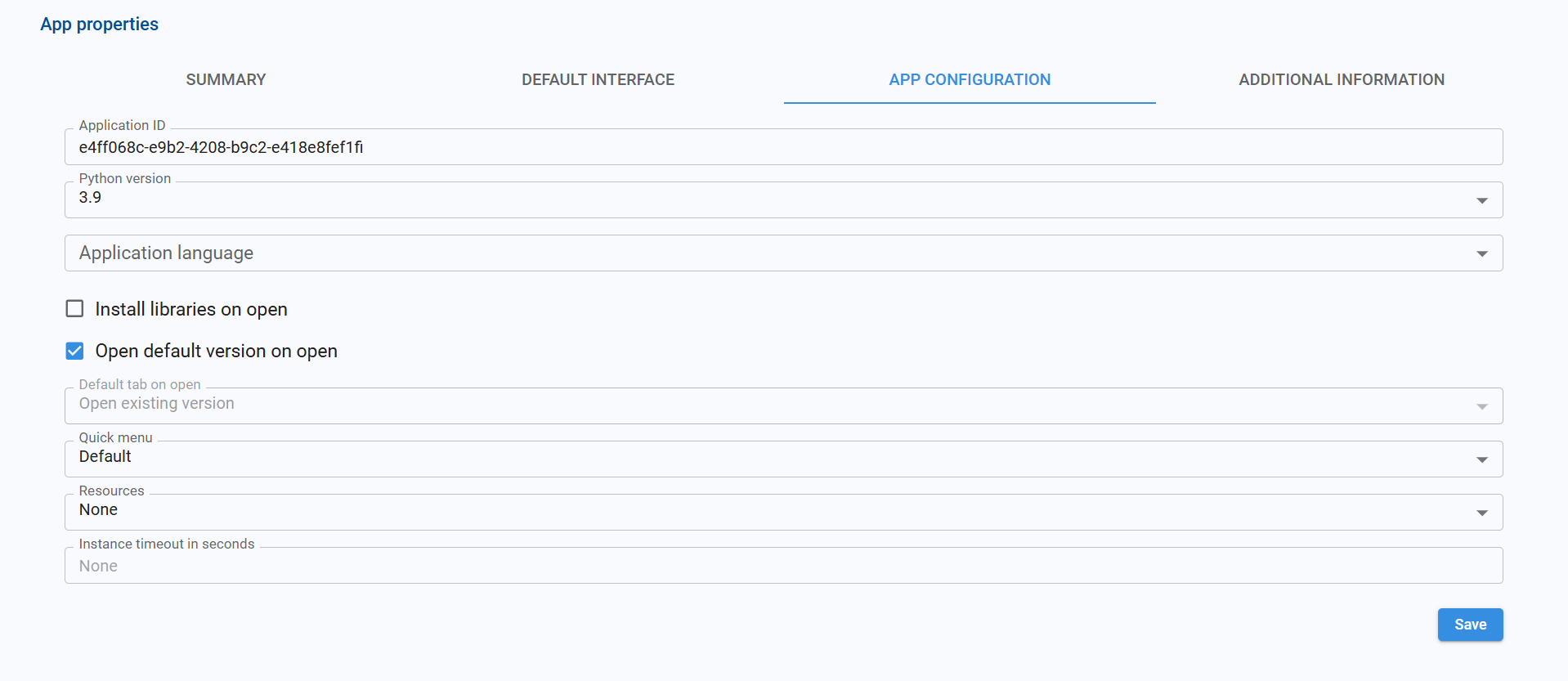
The available options are:
Application ID
The same ID shown in the Summary. It is used for:
- Virtual environment.
- Workflow processes.
- Module/interface access restrictions by department.
- Assistant bots (OpenAI).
- Thumbnail images.
Python version
Python version the app will use.
- If we change it, the application must be reloaded.
- A new virtual environment is created for the selected version if it does not exist yet.
Application language
Default language for:
- Node titles
- Node documentation
- Interface titles
- Component titles
- Menu items
Install libraries on open
When enabled, Pyplan installs the libraries listed in the app’s requirements.txt every time the application is opened. This guarantees that dependencies are present but may increase open time.
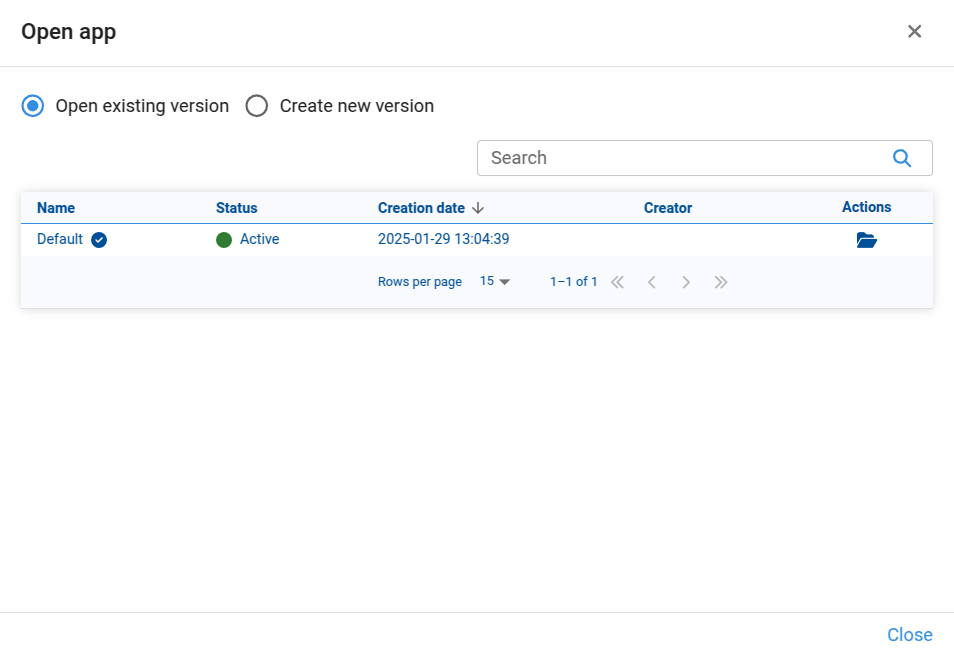
Open default version on open
When enabled, the default version of the app opens automatically whenever we launch the application.
When disabled, opening the app shows a version selection dialog where we can:
- Choose an existing version to open, or
- Create a new version and open it.
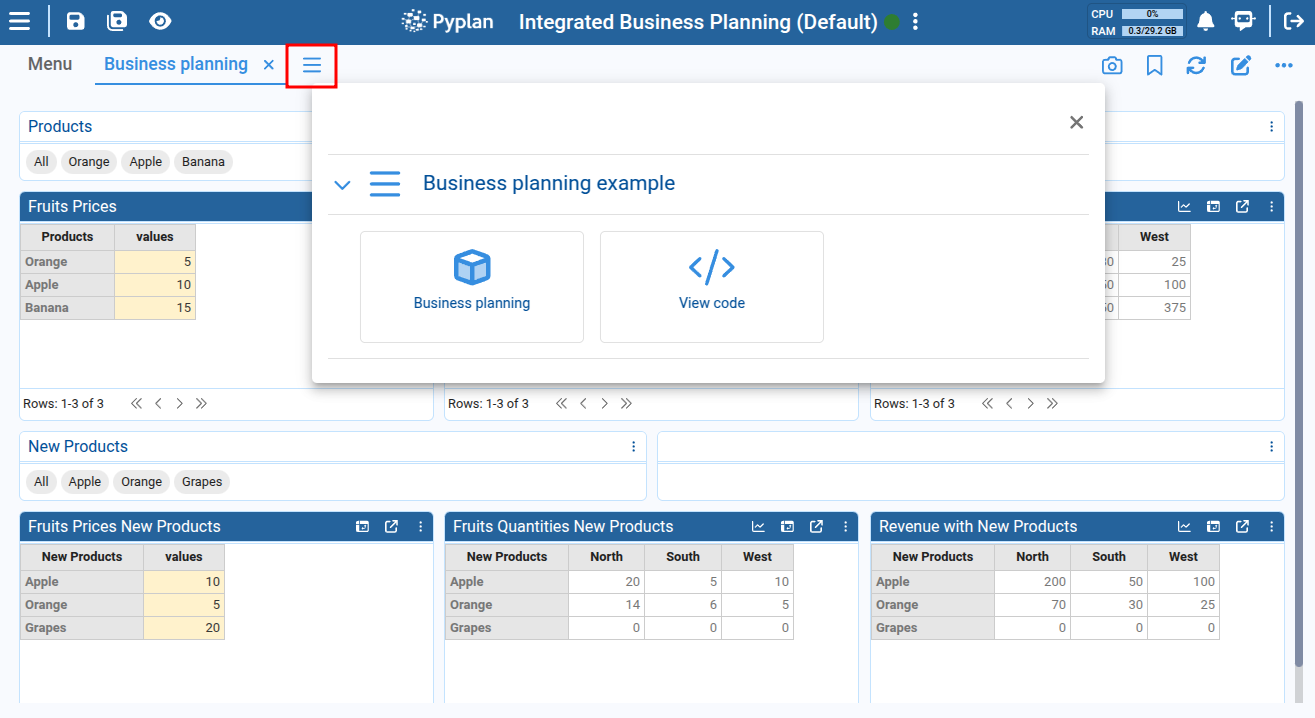
Quick menu
Defines which interface provides the Quick menu used when navigating between interfaces. Options are:
- Default – the Quick menu is taken from the app’s default interface, if it contains a Menu component.
- From interface – we choose a specific interface from the dropdown; its Menu component will be used as Quick menu.
Resources (if available)
Optional resource set to associate with the application (for example, specific data connections or configurations).
Instance timeout in seconds (if available)
Maximum idle time before an application instance is automatically closed.
¶ Additional information
The Additional information tab shows extra technical details about how the app behaves when it is opened.
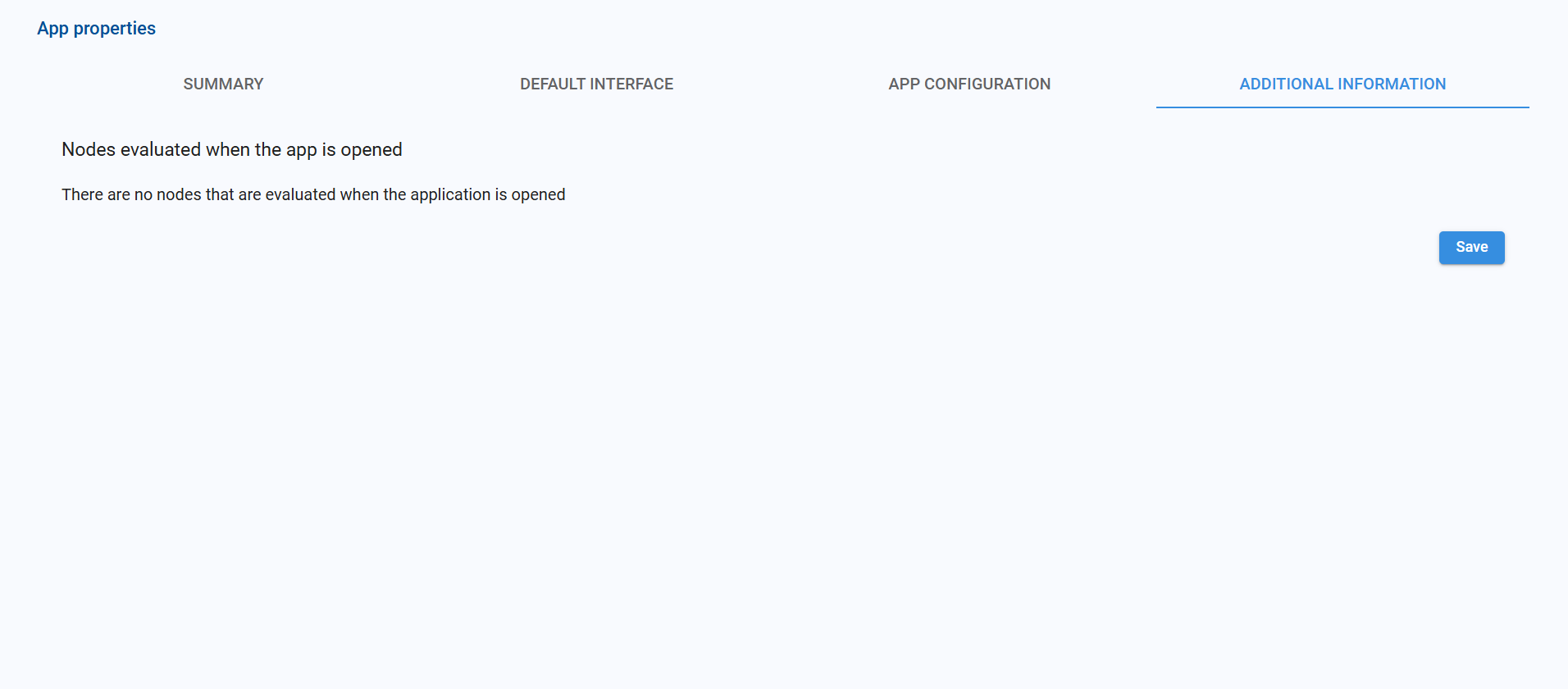
For example:
- Nodes evaluated when the app is opened
Lists any nodes that are automatically evaluated at startup (e.g., pre‑loading data or configuration nodes).
If the message “There are no nodes that are evaluated when the application is opened” appears, the app does not run any node automatically at open time.
Using these tabs together—Summary, Default interface, App configuration, and Additional information—we can control both the technical behavior and the user experience of a Pyplan application from a single, centralized dialog.
After making changes in this tab, we click Save to apply them.