Virtual environments in Pyplan are dedicated spaces where we install the Python libraries required by each application. Pyplan automatically manages these environments and loads the appropriate one every time we open an app.
From Pyplan 3.3.1 onward, each application has its own virtual environment. This allows every app to maintain its own set of libraries, simplifying dependency management and ensuring an isolated, reproducible runtime.
¶ Operation
All virtual environments are stored in the .venvs folder, located either in the Public area or within a user’s workspace.
Within .venvs, environments are also organized by CPU architecture. This means an app running on x86 mounts a different environment than the same app running on ARM, ensuring that all libraries remain compatible with the system’s underlying architecture.
We distinguish three main scenarios:
1. App opened from Public and the environment does not exist yet
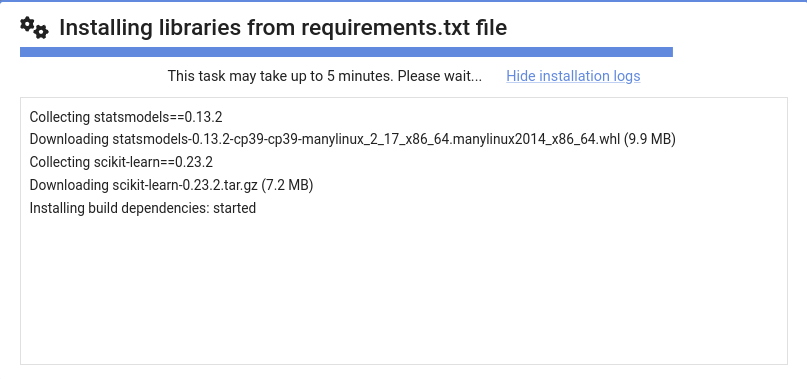
- When we open the application, Pyplan creates a new virtual environment for it.
- This process can take a few minutes. We can monitor its progress using Show installation log / Hide installation log.
2. App opened from Public and the environment already exists
- Pyplan mounts the existing virtual environment.
- It compares the installed libraries with those listed in
requirements.txt. - If there are missing libraries, Pyplan installs them automatically.
3. App opened from the user workspace
- If a virtual environment for that app already exists in the user workspace, Pyplan mounts it.
- If it does not exist locally, Pyplan tries to mount the corresponding environment from Public.
- If no environment exists in Public either, Pyplan creates a new environment in the user workspace.
In scenario 3, when the app is opened from the user workspace but the environment is still being used from Public, trying to change libraries (via pip install or by editing requirements.txt) triggers a warning message.
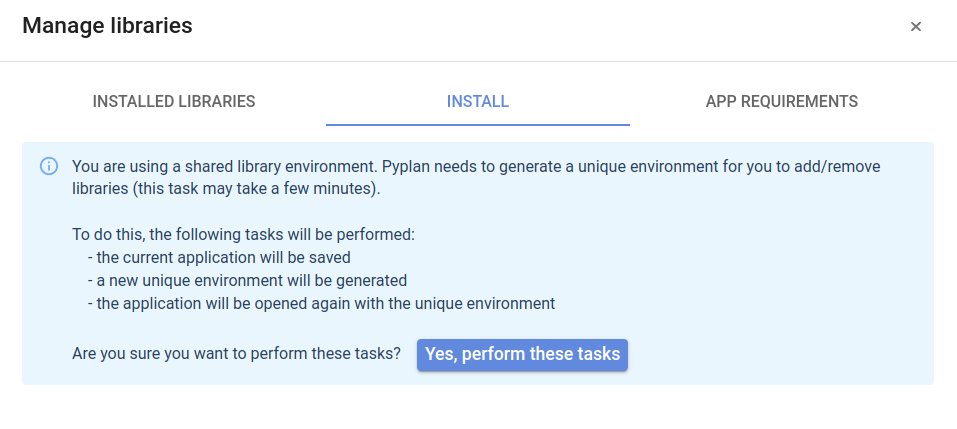
This message indicates that, to modify libraries, Pyplan must first create a dedicated environment in the user workspace. The process starts automatically when we click Yes, perform these tasks. It may take some time; once it finishes, we can install or update the libraries we need.
We should run this action only if we really need to add or modify libraries.
¶ Installing libraries
We manage an application’s Python libraries from Manage libraries, which contains three tabs: Installed libraries, Install, and App requirements.
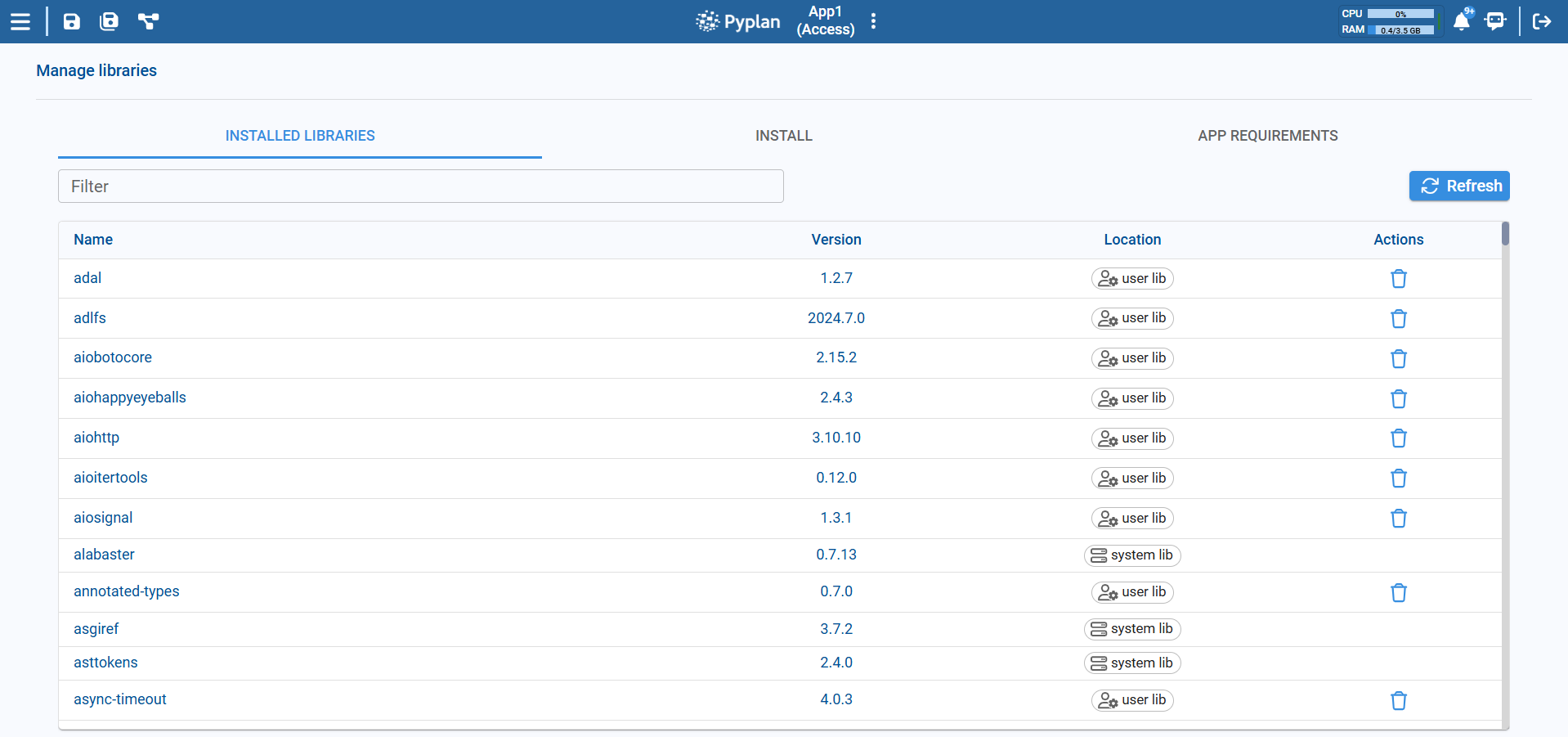
The Installed libraries tab lets us review what is currently installed and remove packages using the trash icon. When we add or remove packages through the UI, Pyplan updates requirements.txt automatically so it always reflects the libraries required by the application.
There are two main ways to add or update libraries.
¶ 1. Install library
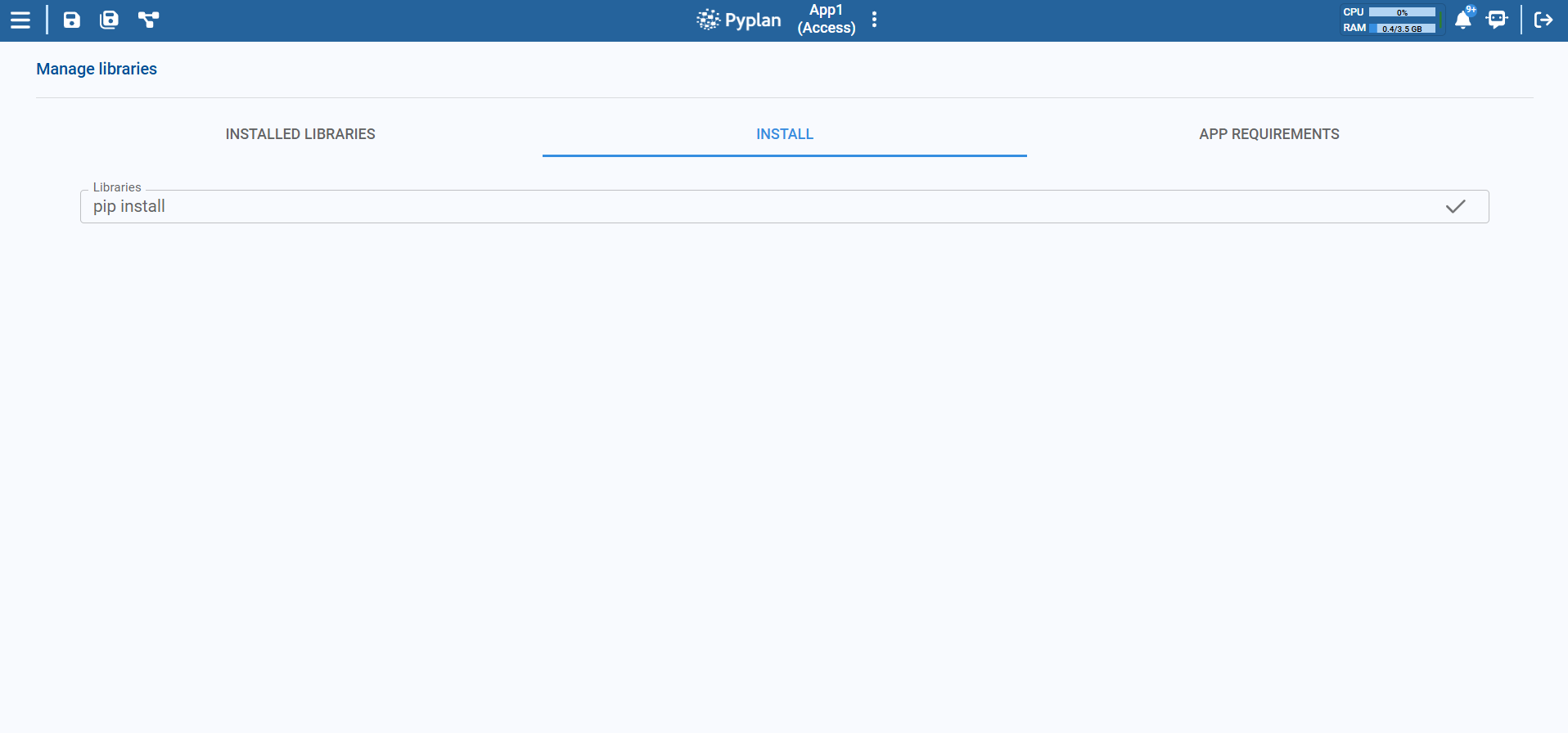
In the Install tab we can install libraries directly:
- Open Manage libraries → Install.
- In the Libraries field, type the name of the package we want to install (for example,
pandas,scikit-learn==1.4.0). - Confirm the action using the check icon on the right.
Pyplan installs the package into the current virtual environment. The newly installed library then appears in the Installed libraries tab with its version and location (user lib / system lib).
¶ 2.Edit requirements.txt
For more control, we can edit the requirements file:
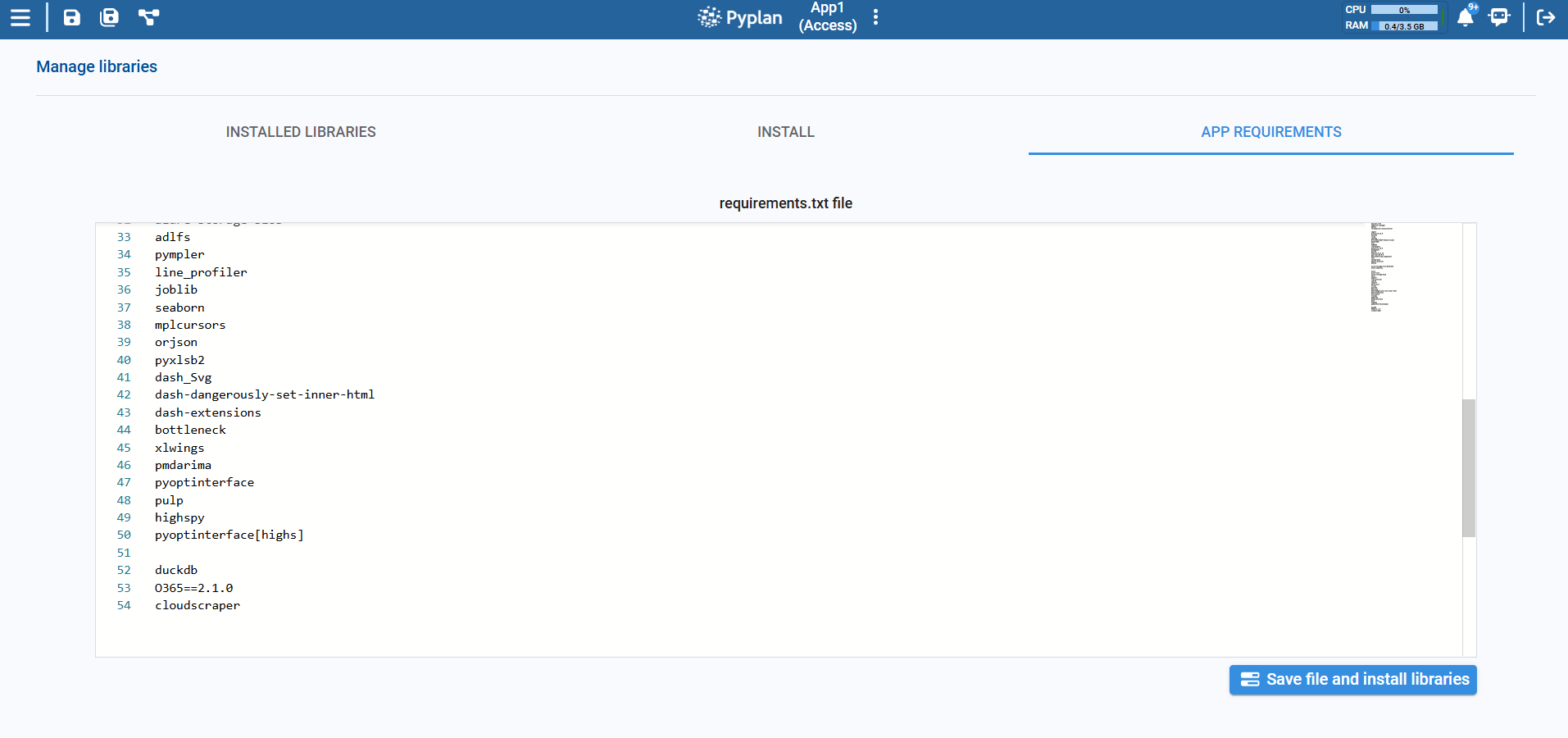
- Open Manage libraries → App requirements.
- The editor shows the current content of
requirements.txt(one library per line). - We add, remove, or change packages and versions as needed.
- Click Save file and install libraries to:
- Save the updated
requirements.txt, and - Install/update libraries so the environment matches the file.
- Save the updated
The complete set of libraries an application depends on is defined in
requirements.txt.
This file is automatically regenerated when we install a library from the Install tab or remove one from Installed libraries.
¶ Application ID
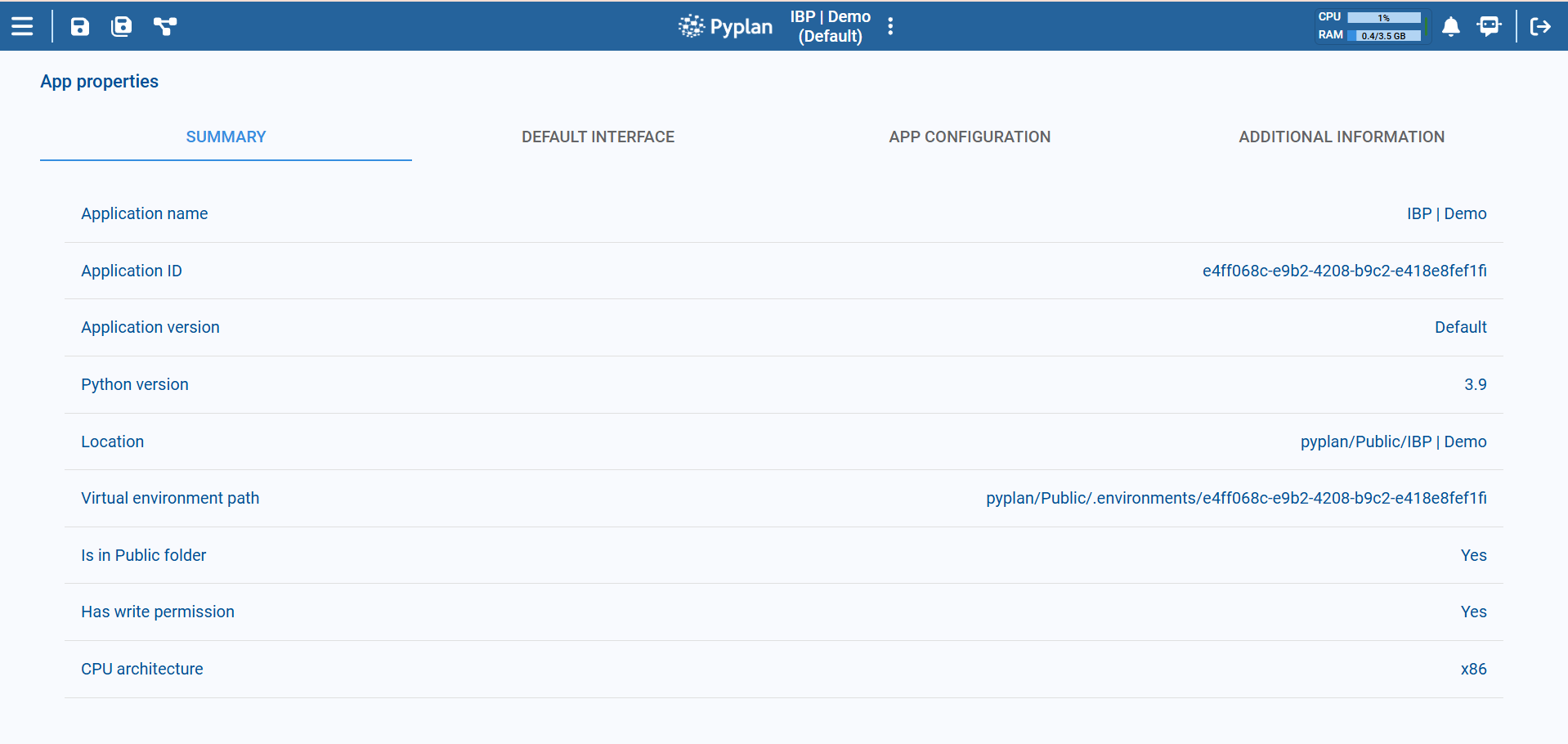
Each Pyplan application has a unique Application ID, visible in App properties under the Summary or App configuration tab.
¶ Application ID
- The ID is generated automatically when we create a new application.
- It is used to link the application with its virtual environment and other resources (workflows, access rules, thumbnails, etc.).
If we want to build a new application based on an existing one, we should use the Create from function. This creates a new application with its own unique ID, so it does not share virtual environments or configurations with the original app.
If we copy an app manually (for example, duplicating folders) and reuse the same ID, both apps will point to the same environment, which can cause conflicts. Using Create from is the recommended way to create a new app from an existing one.

Using environments for the first time
When we open an application created with a Pyplan version prior to 3.3.1, Pyplan needs to create a new virtual environment for it the first time.
- This creation happens automatically when we open the app.
- The time required depends on the number and size of the libraries defined in
requirements.txt.
Once the environment is created and the libraries are installed, subsequent opens of the application will reuse the same environment, so loading will be much faster.