¶ HTML Dynamic component
The HTML Dynamic component lets us embed custom HTML into a Pyplan interface and connect HTML elements to application actions without writing glue code. We can paste or write HTML (including CSS styles and basic behavior) and then, through a configuration panel, link specific HTML elements to actions such as opening interfaces, navigating, or running nodes.
Using this component, we can build highly customized panels (cards, buttons, notifications, banners, etc.) while still keeping all logic connected to the Pyplan model.
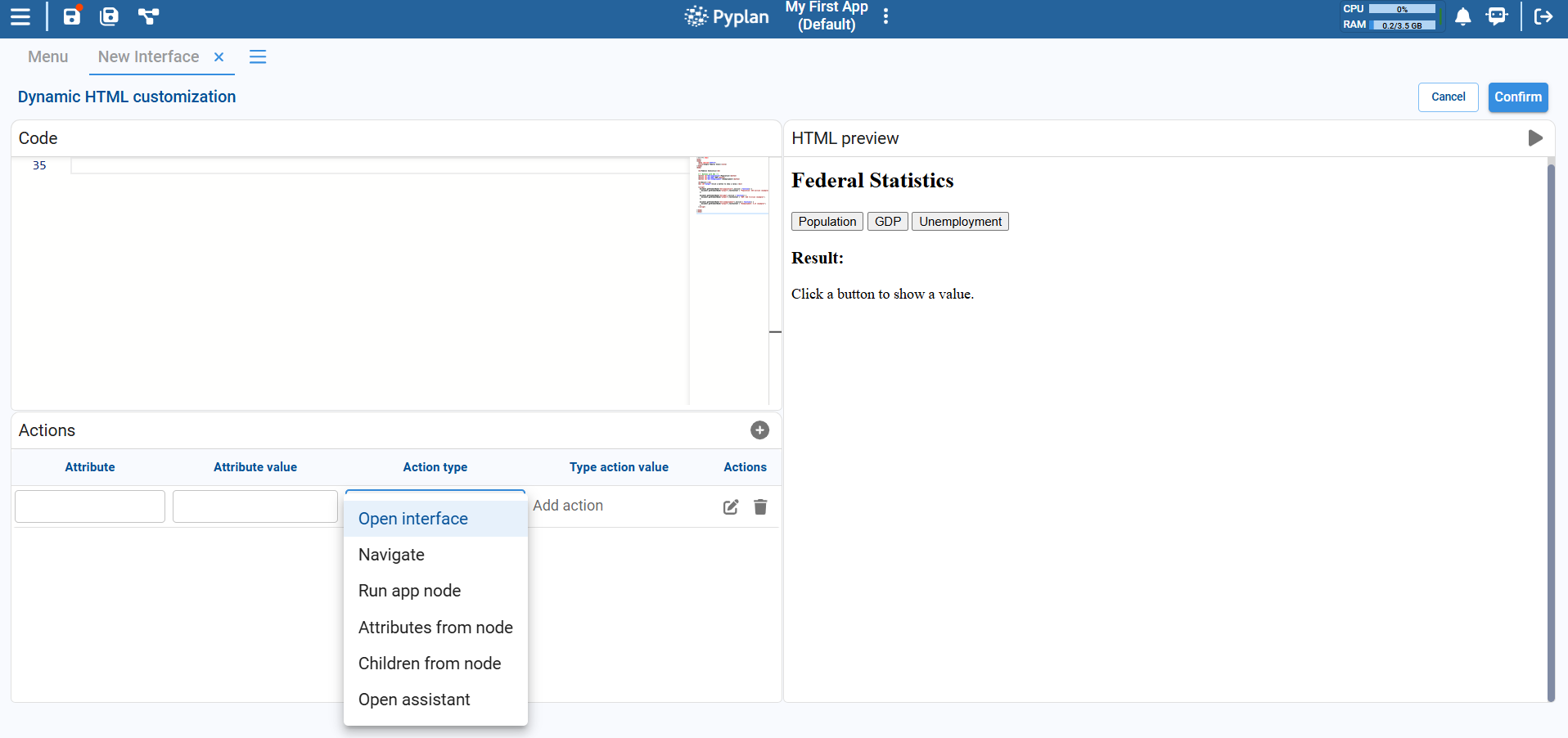
¶ Layout and main areas
When we add an HTML Dynamic component to an interface and open its configuration, we see three main areas:
Code
- Large text area where we write or paste the HTML markup.
- Here we can include HTML elements, CSS inline styles, and IDs/classes we will later reference in actions.
HTML preview
- Live preview of how the HTML will be rendered in the interface.
- Updates when we run or confirm changes, allowing us to validate the layout and styling.
Actions
- A table at the bottom where we define dynamic behaviors for specific HTML elements.
- Each row links an HTML attribute (for example,
id="execute-app") with an action type and a corresponding value (such as a node Id or interface name).
¶ Defining actions on HTML elements
Each row in the Actions table describes how a particular HTML element should behave. For each row we configure:
Attribute
The HTML attribute used to identify the element.
Example: id.
Attribute value
The value of that attribute in the HTML.
Example: execute-app, notification-block.
Action type
The behavior that will be triggered when the element is interacted with (typically on click).
The available action types are:
Open interface
Opens a specific Pyplan interface.
We enter the identifier or name of the target interface in the Type action value field.
Navigate
Navigates to a specific section of the application, such as:
- Code
- Interfaces
- Scheduled tasks
- Other high‑level areas, depending on configuration.
We enter the navigation target in Type action value.
Run app node
Executes an application node.
We specify the node Id in Type action value.
Example: button with id="execute-app" and action type Run app node with value fin_run_node.
Attributes from node
Sets one or more HTML attributes based on the result of a node.
A typical use case is to dynamically apply styles or classes.
Example:
- Attribute:
id - Attribute value:
notification-block - Action type: Attributes from node
- Type action value: Id of a node that returns a string such as
"background-color: blue; color: white";
this string is then assigned to thestyleattribute of thedivwith idnotification-block.
Children from node
Replaces the inner content (children) of an HTML element with the result of a node.
Example:
- Attribute:
id - Attribute value:
tasks-counter - Action type: Children from node
- Type action value: Id of a node that returns the string
"You have 2 pending tasks".
This text becomes the content of the<p id="tasks-counter">element.
Open assistant (if available in your installation)
Opens a contextual assistant or help panel linked to the HTML element.
We can add as many rows as needed using the “+” button in the Actions section. Each row can have its own Attribute, Attribute value, and Action type, allowing multiple interactive elements within the same HTML block.