¶ Upload manager
This component centralizes file upload and download actions, avoiding the need to navigate to the file manager or implement a custom component for basic file handling functions.
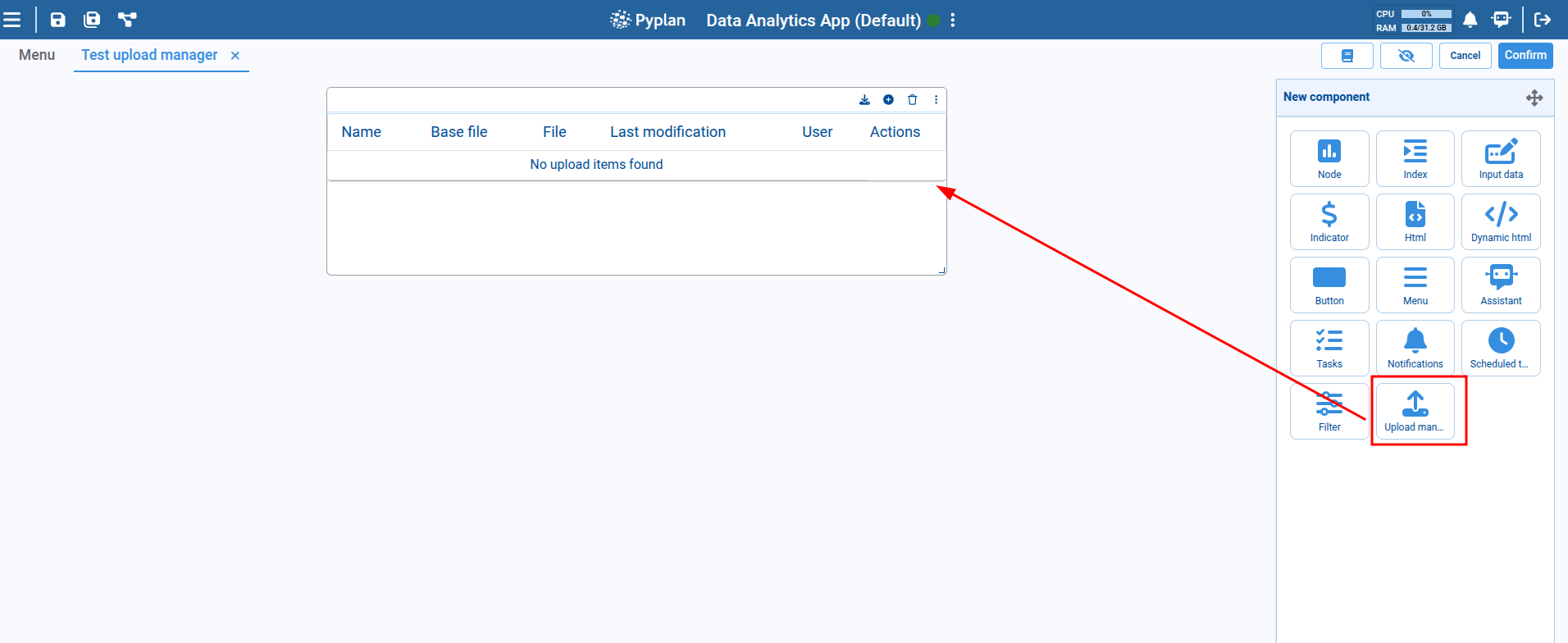
It is added to the interface during the editing phase, just like any other component, by dragging the icon shown in the image and creating a new component that initially appears as an empty table.
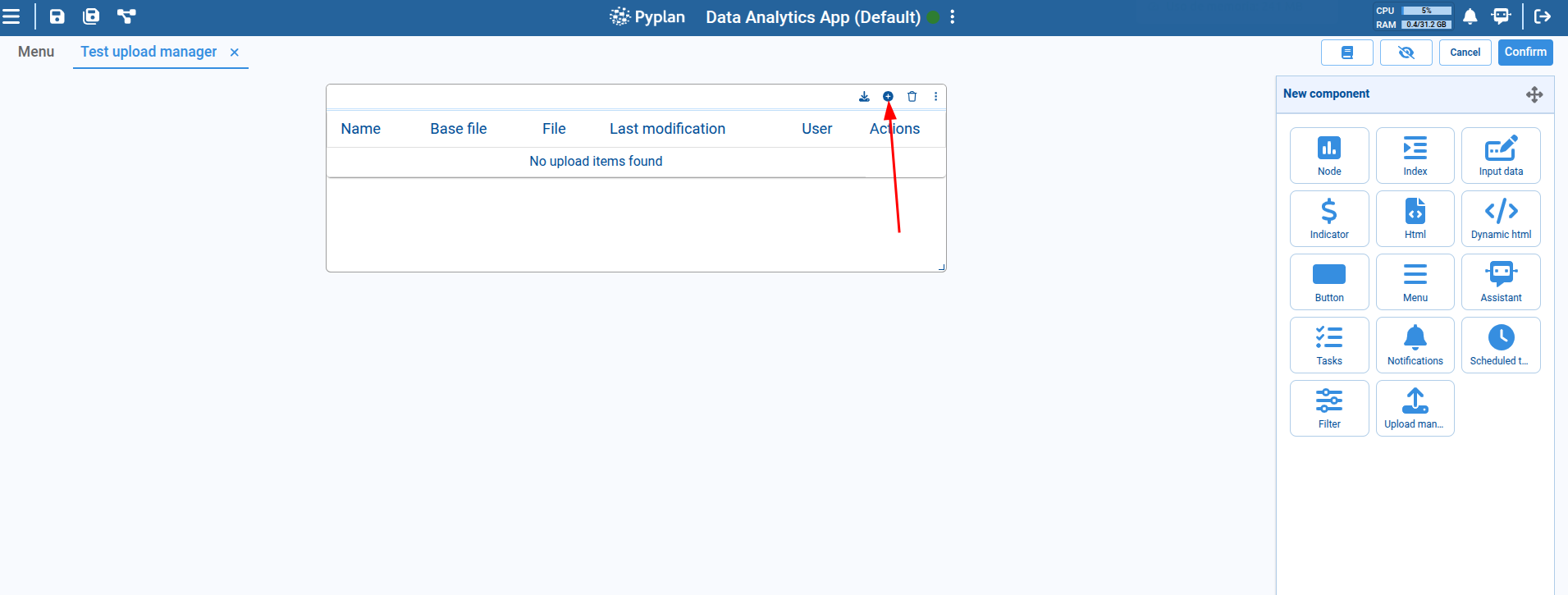
Once the component is created, each new item must be configured using the "Add" button in the component header.
¶ Upload item configuration
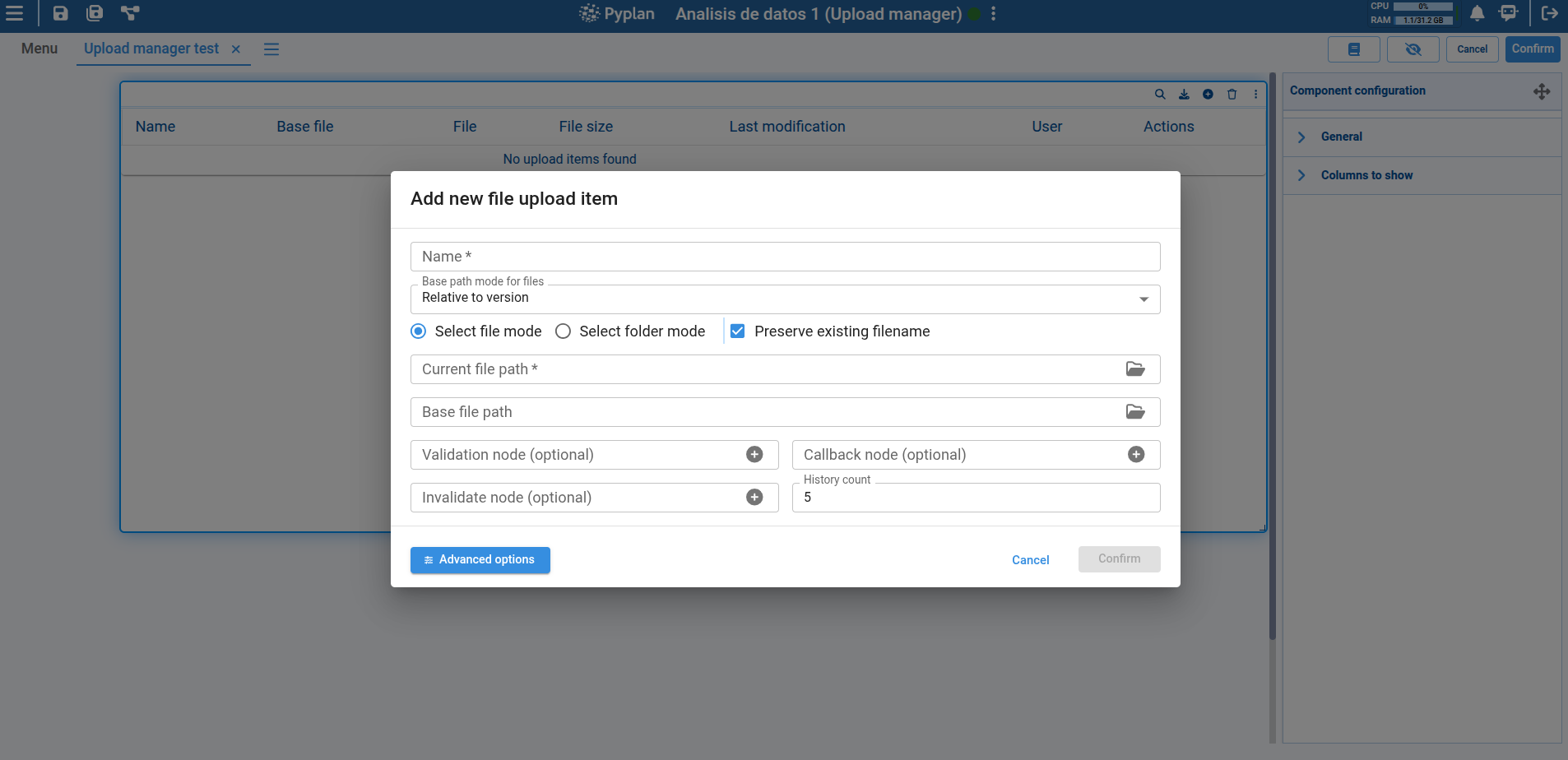
This opens a dialog with the basic configuration options for each item in the component.
Each item in the component corresponds to a file that will be uploaded or downloaded, and can include options such as the file name, destination path, and other relevant metadata.
The configuration options shown in the dialog include:
- Item name: A descriptive name that represents what the file is or its purpose.
- Path selection mode: Specifies how the file path will be selected. It can be a fixed path defined as “Custom,” a path relative to the application, or a path relative to the application version.
- File path: Specifies the file's location in the system. Above this field, there is a checkbox that allows you to choose whether to preserve or modify the file name when uploading a new file. By default, it is set to preserve the file name.
- Base file path: Used to define a base file that can serve as a reference or template. When uploading a new file, this reference can be used to perform field or structure validations.
Note that the fields above must refer to a file that already exists in the system and has been previously uploaded via the file manager.
Below the file path configuration section, there is an optional section to define nodes that perform various actions when a new file is uploaded:
- Validation node: This node runs custom validations when a new file is being uploaded. It ensures the file meets specific criteria before proceeding with the upload. The validation node should be a function-type node that receives a file path as a parameter and returns a boolean indicating whether the validation was successful.
- Callback node: This node is executed once the file has been successfully uploaded. It allows for additional actions, such as notifying the user or updating other components in the interface. The callback node must also be a function-type node, but it does not receive any parameters and does not return any value. It simply runs after the file upload is complete.
- Invalidation node: Like the callback node, this is also executed after a successful upload but is used to invalidate the selected node for a specific purpose if required by the application. No specific structure is required—it simply executes after the file upload.
- History count: There is also a numeric field to define how many historical versions of the uploaded files the item will keep.
- Radio buttons:
If the "Select file mode" option is selected (default option), a checkbox will be displayed allowing you to PRESERVE the current file name or replace it with the name of the uploaded file.
In this mode, the "current file path" input must be a file — folders cannot be added.
If you choose NOT to PRESERVE the current file name, you may assign either a folder or a file.
If the "Select folder mode" option is selected, only a directory can be chosen in the "current folder path" input — files are not allowed.
This option is useful when you want to maintain a directory containing all uploaded files. Files uploaded to this directory will not overwrite each other, unlike in "Select file mode", where each newly uploaded file replaces the previous one.
Advanced options are also available and can be accessed by clicking the “Advanced Options” button at the bottom of the item configuration dialog.
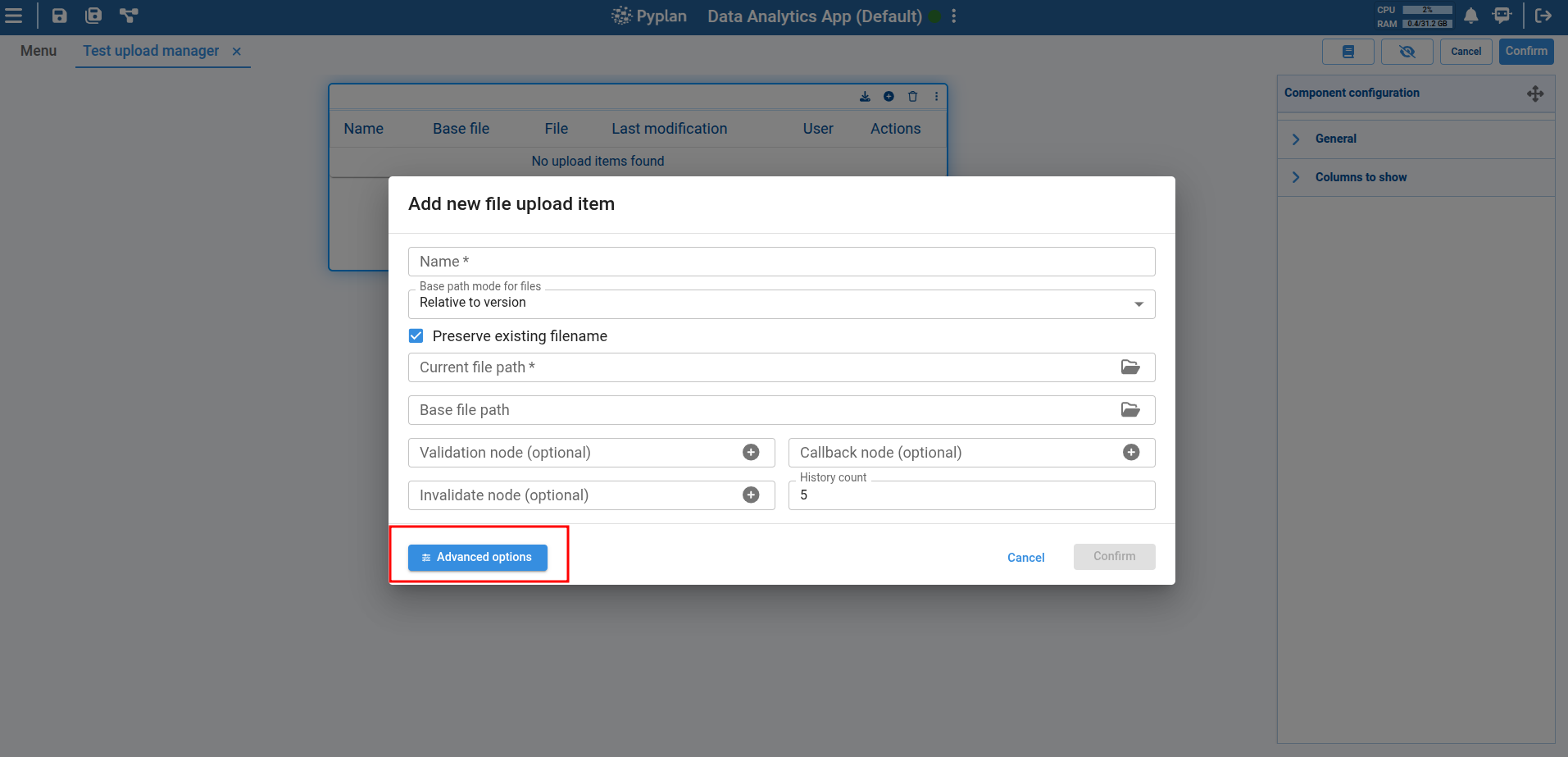
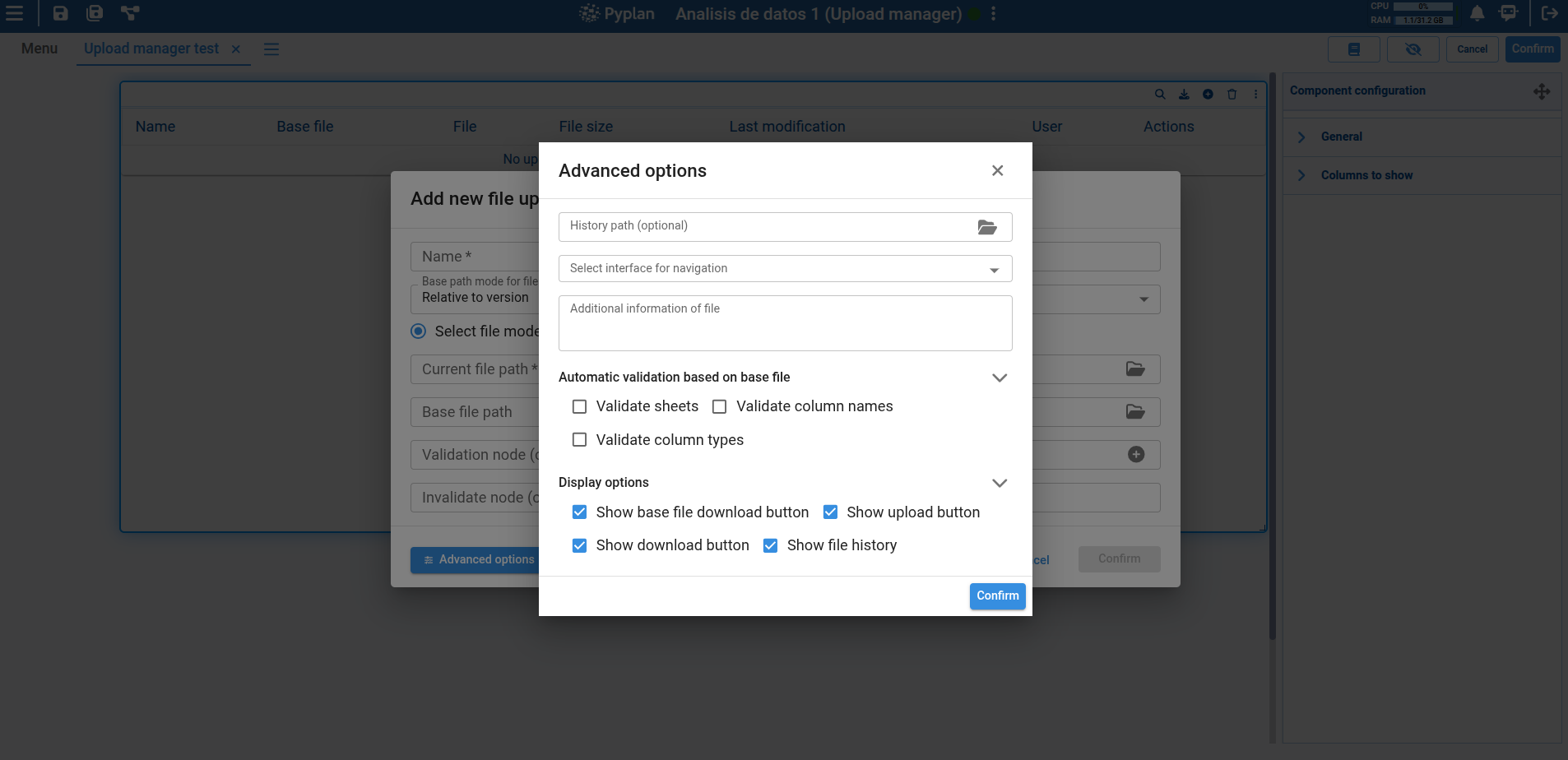
This opens an additional dialog with the following options:
- History path: Allows defining a path where historical versions of uploaded files will be stored. This path is important for tracking previous versions of the files. If not specified, the system will use the same directory where the current file is located.
Note that this path is also relative to the selected base file path mode. - Select an interface to navigate to: You can select a specific interface to navigate to if you want to validate special behavior on another interface when uploading a new file.
- Additional information of file: Allows adding extra information about an item. This will be displayed in the table as a tooltip on an icon next to the item's name.
- Automatic validations based on base file: These are three checkbox options that activate automatic validations based on the selected base file. These validations are executed when a new file is uploaded and may include:
- Spreadsheet validation: Checks if the spreadsheet complies with a specific format.
- Column name validation: Ensures that the column names in the file match the expected names.
- Data type validation: Verifies that the data types in the file match the expected types.
These validations are mainly used for spreadsheet files and help ensure that the uploaded data is consistent and meets system requirements.
At the bottom, there are also icon view options. You can choose to show or hide action icons for each item in the component, such as:
- Show base file download button
- Show uploaded file download button
- Show upload new file button
- Show upload history button
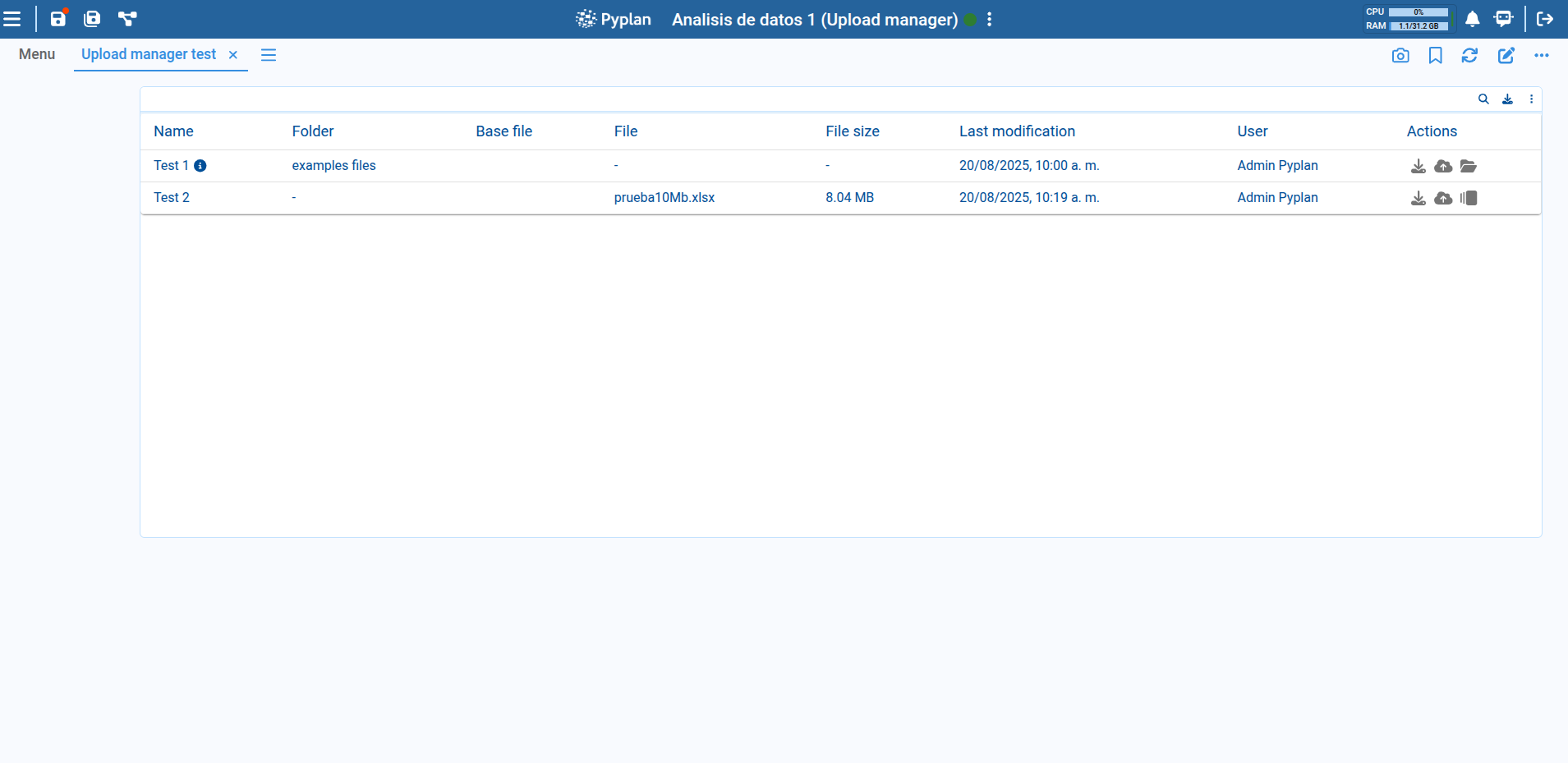
¶ Table with new configured item
Once the item is configured, it is displayed in the component’s table, where you can see file details such as the item name, base file name, current file, date and time of last modification, the user who modified it, and available actions.
Each row in the table represents an uploaded file or a file available for download, and actions can be performed on each one, such as downloading the base file, downloading the uploaded file, viewing the upload history, uploading a new file, or navigating to an interface.
In component editing mode, each item can be modified or deleted.
¶ Actions on items
You can upload a new file by clicking the upload button. This opens a dialog where you can select the file you want to upload.

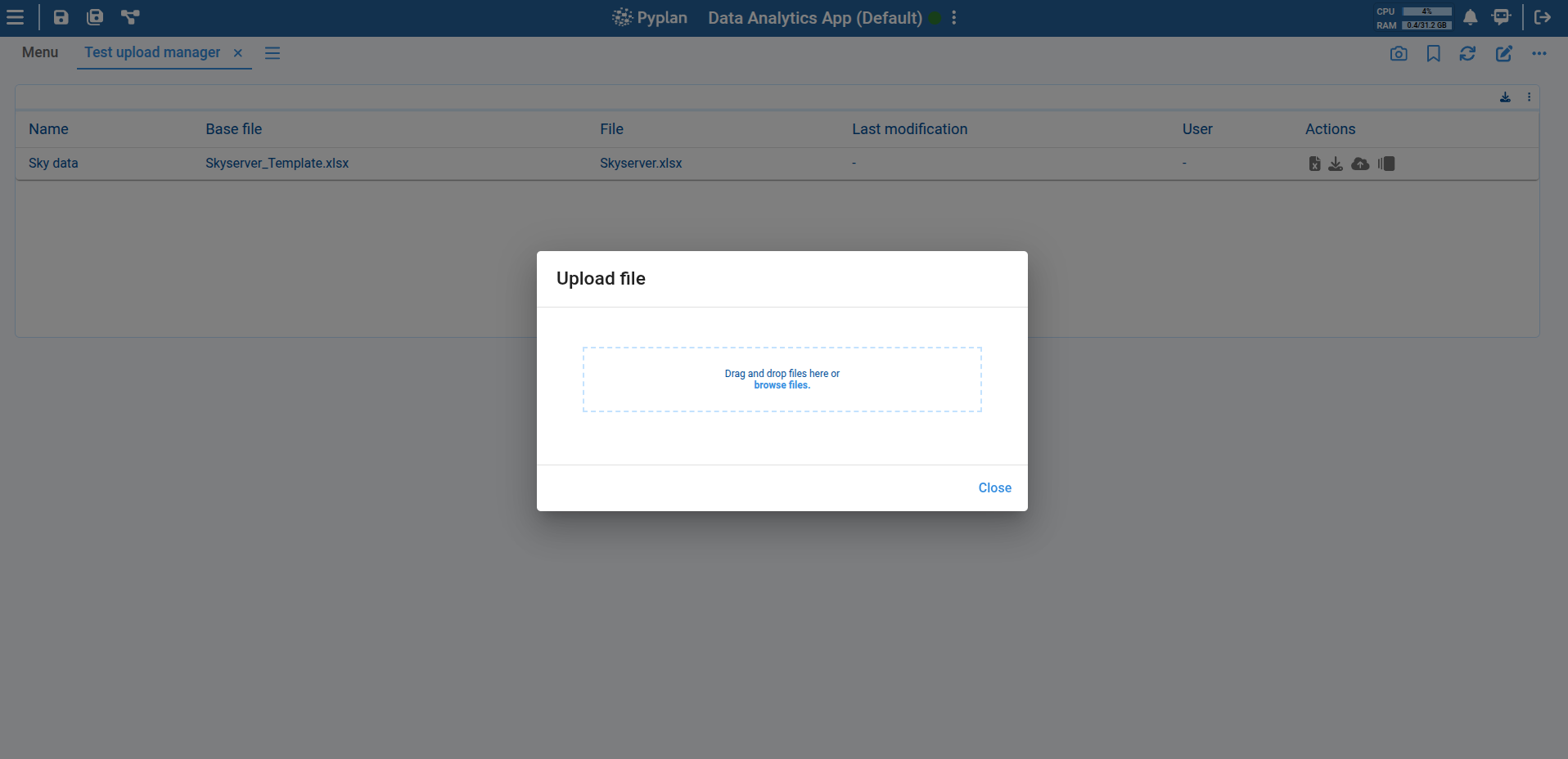
Once the file is selected, automatic validations will be performed and the file will be uploaded into the system.
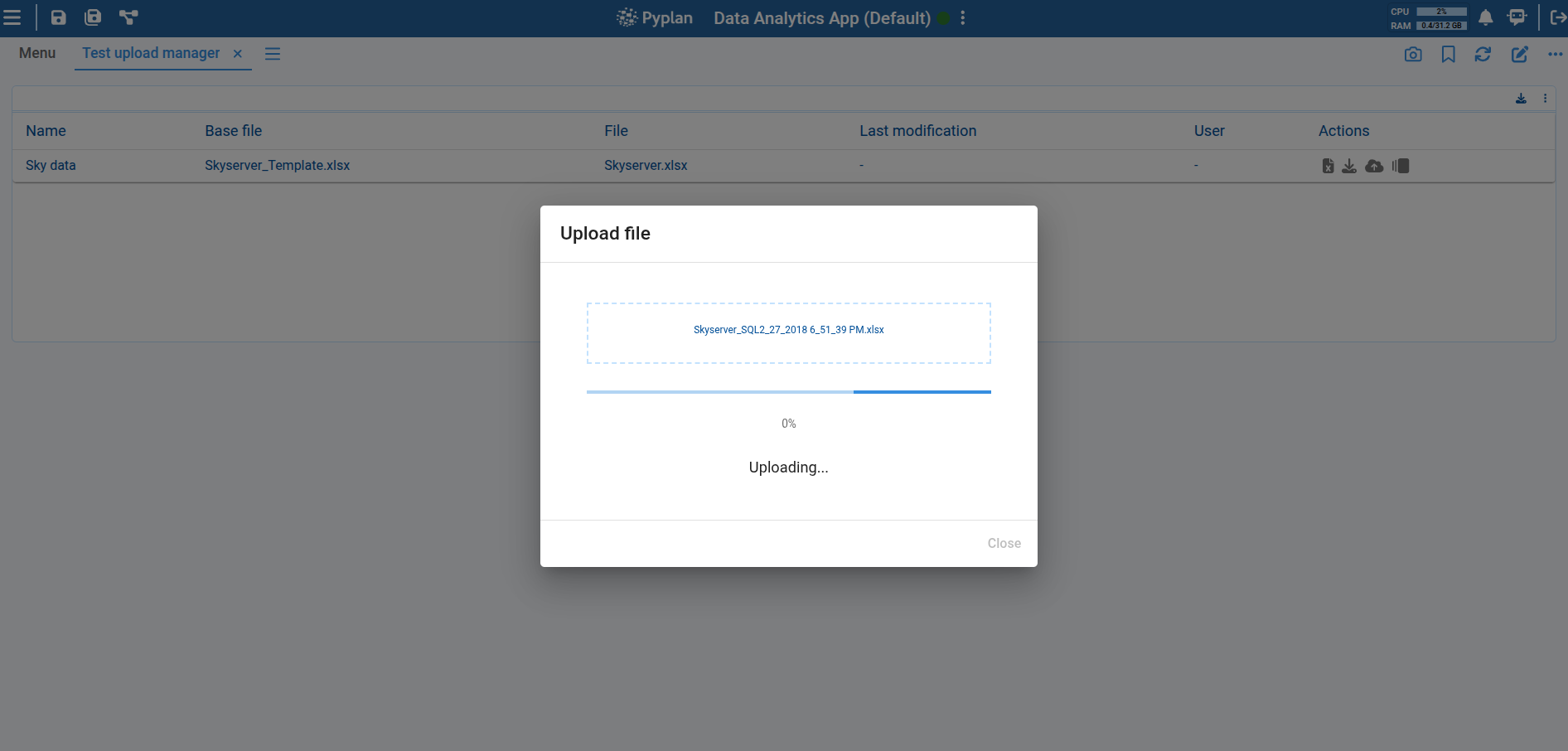
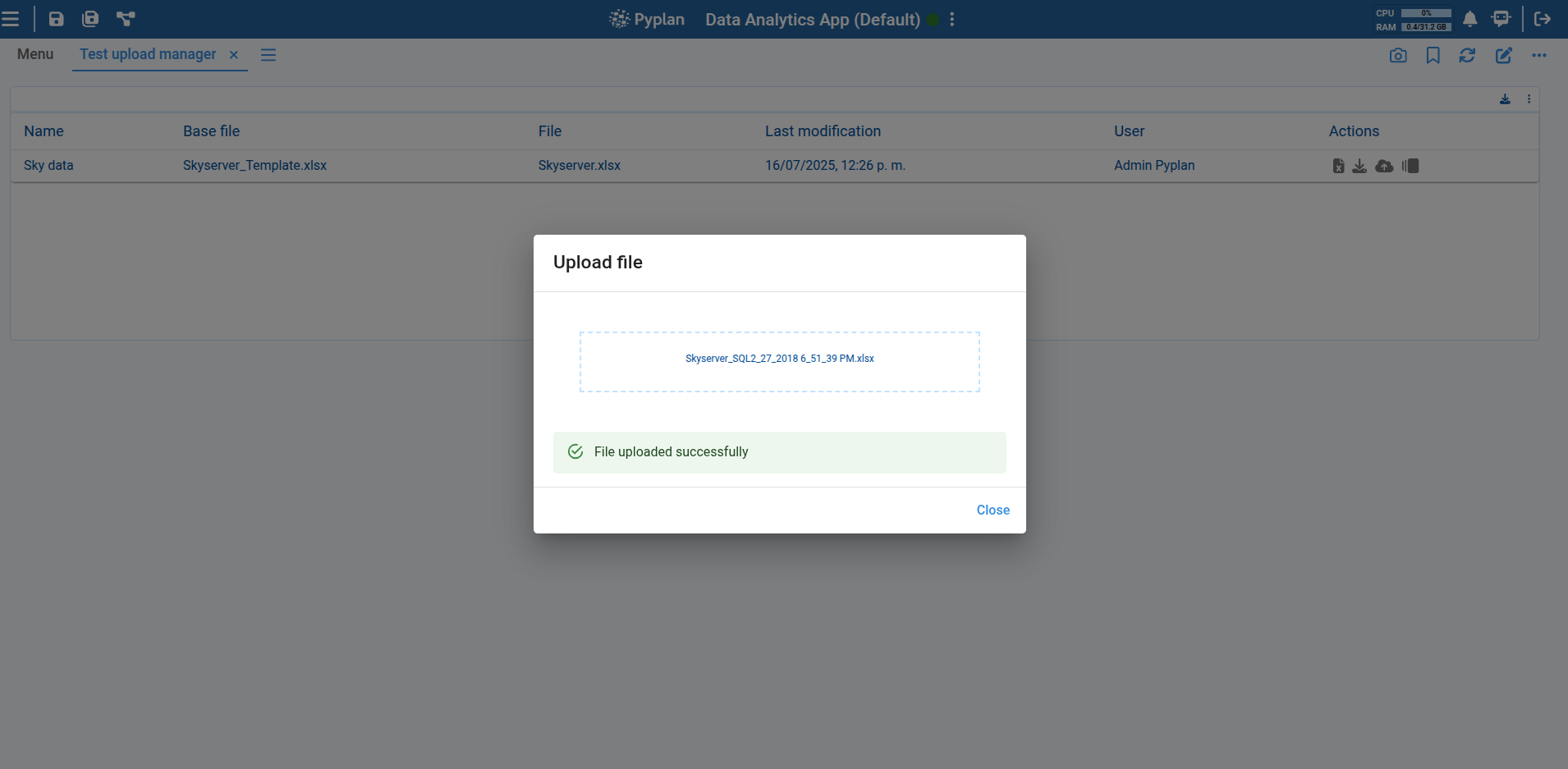
When a new file is uploaded, the component’s table is updated to reflect the new file, showing the user who performed the upload and the upload date. It also displays the size of the newly uploaded file. All other table fields remain unchanged.
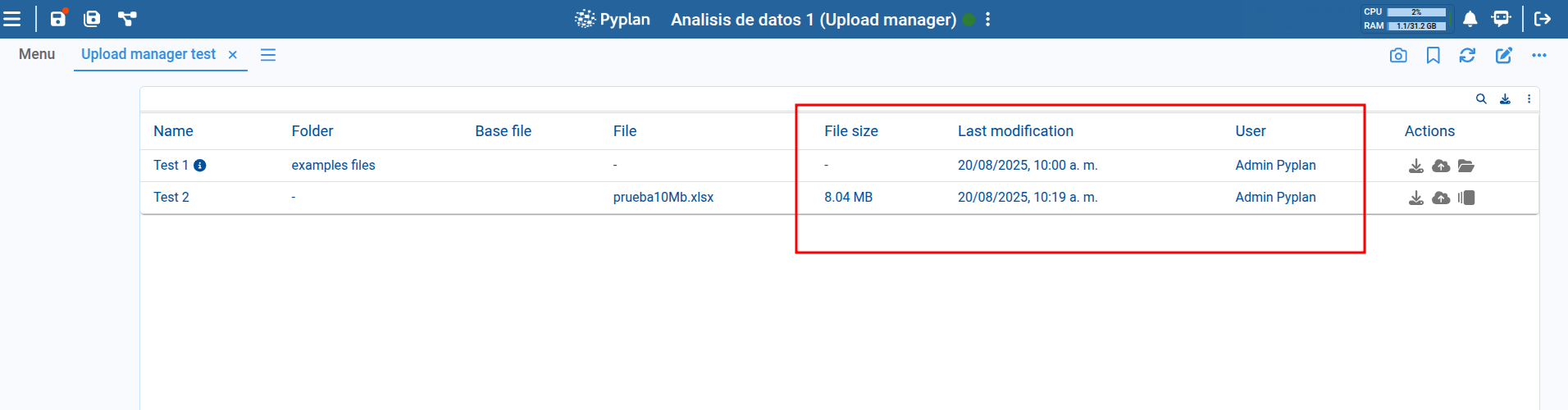
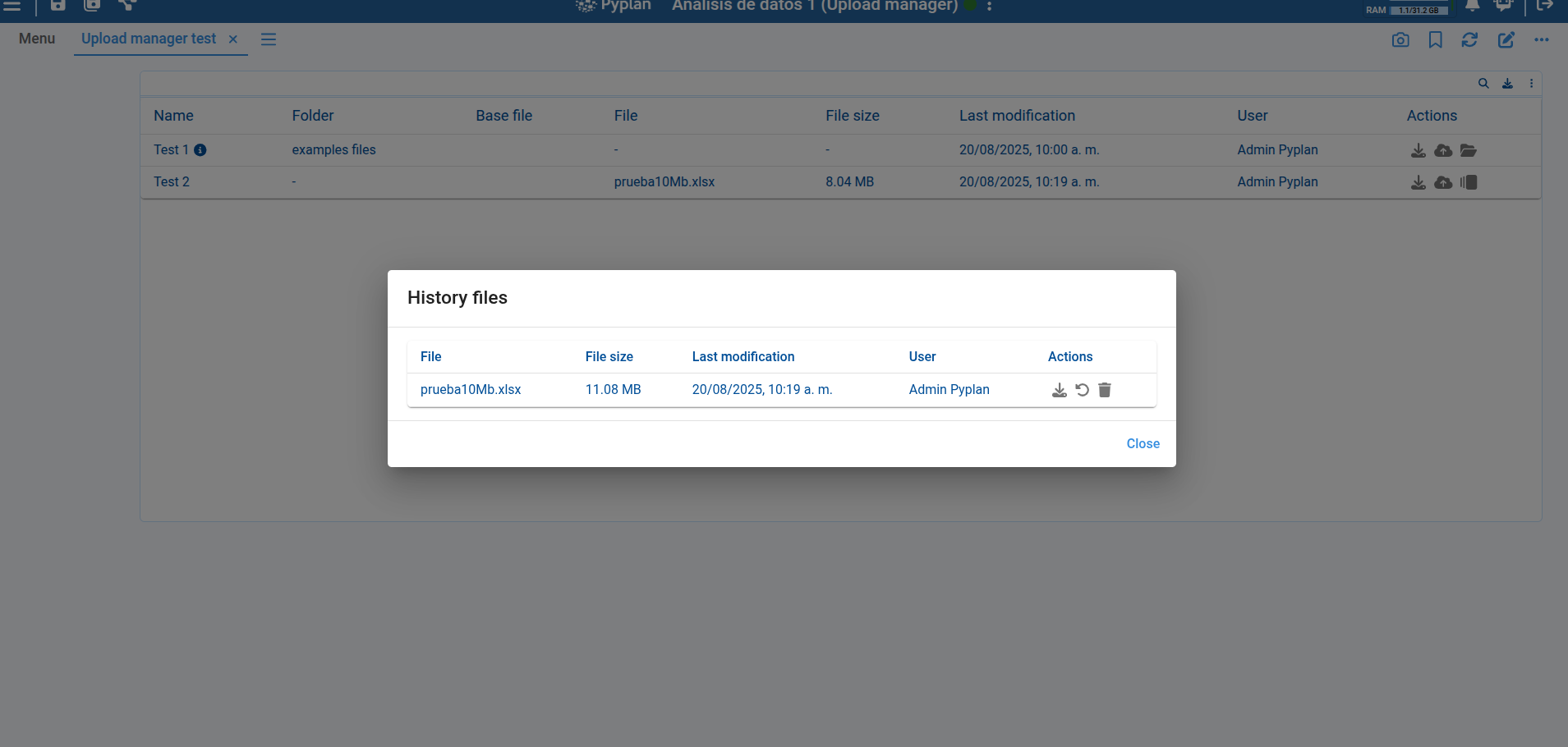
If you want to view the upload history, you can click the history button. This will open a dialog showing a list of previously uploaded files along with details such as upload date, the user who uploaded them and the file size.
From this dialog, you can also download previously uploaded files, restore a file from history, which will replace the current file with the selected version from the history and delete history item.
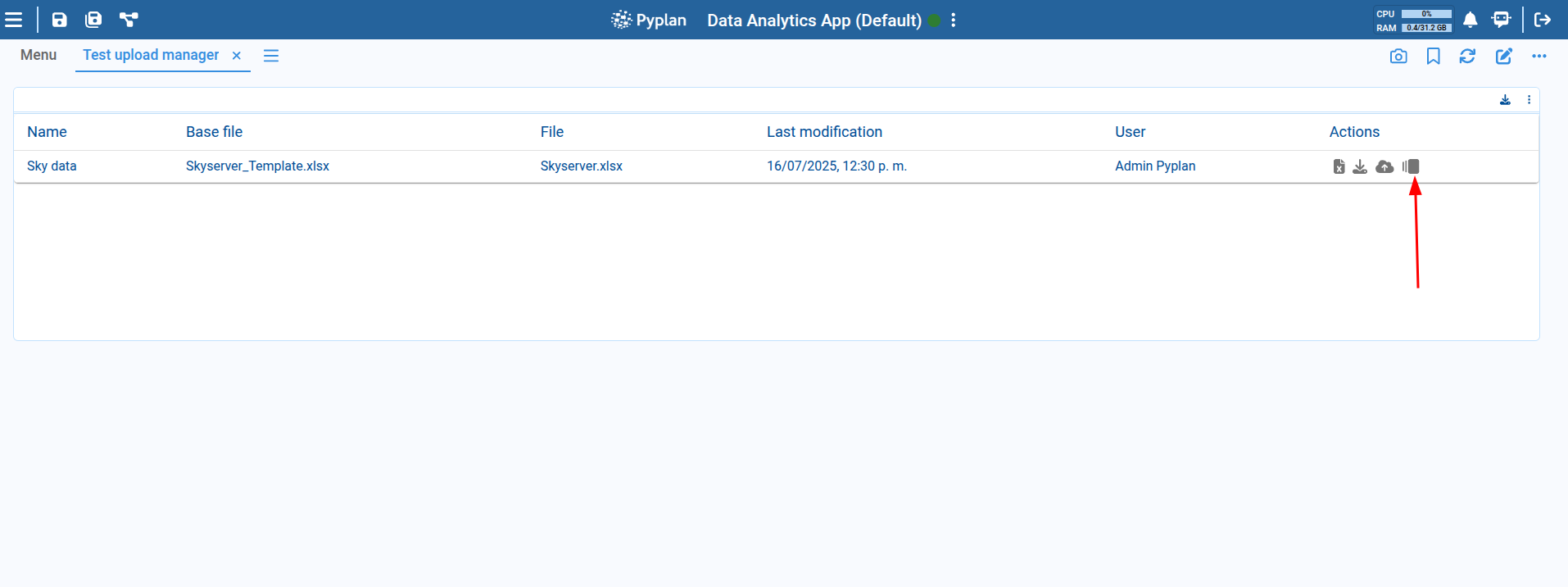
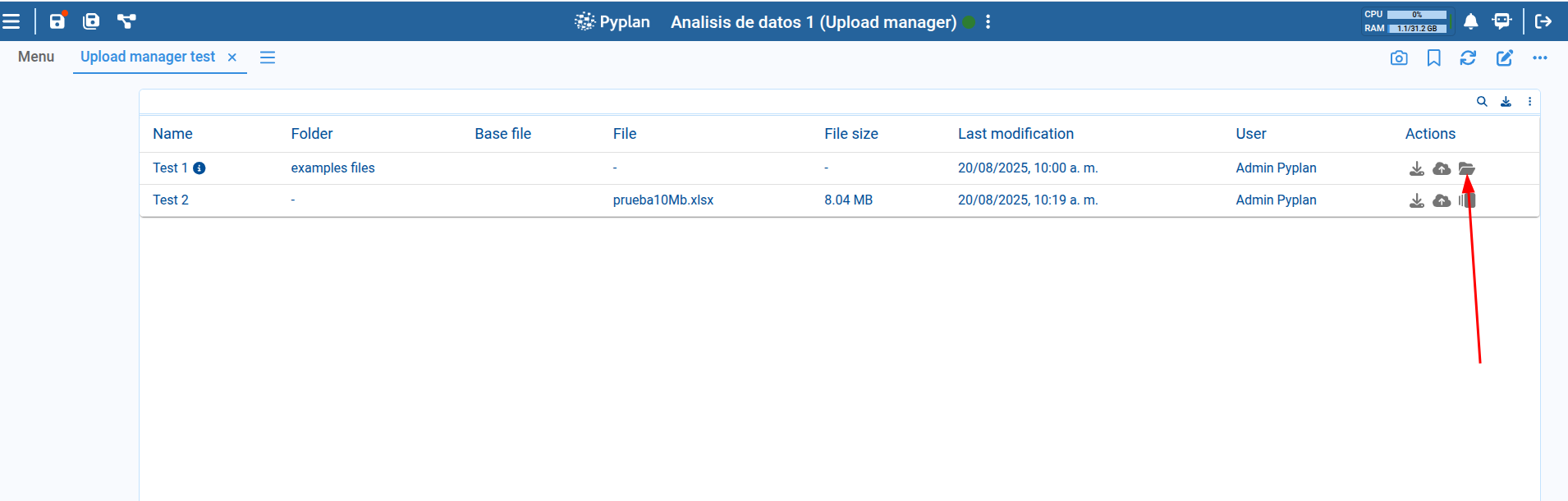
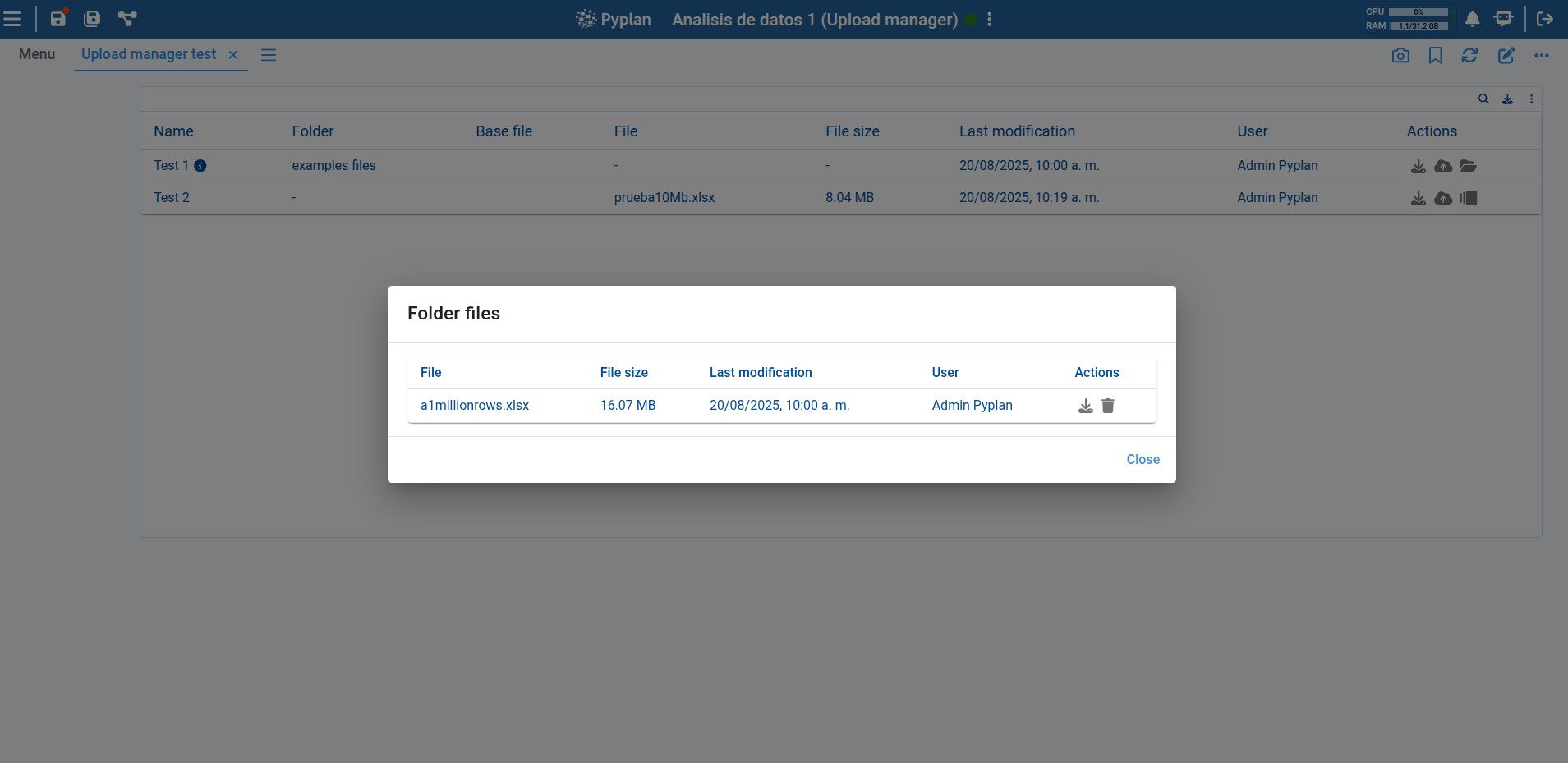
If the option to work with folders (instead of files) is selected, the uploaded files within the folder can be accessed for download or deletion, similar to how it is done with the history.
In this case, the table item will display a different icon corresponding to a folder and will not have a history, since files are uploaded without being overwritten, making a file history unnecessary.
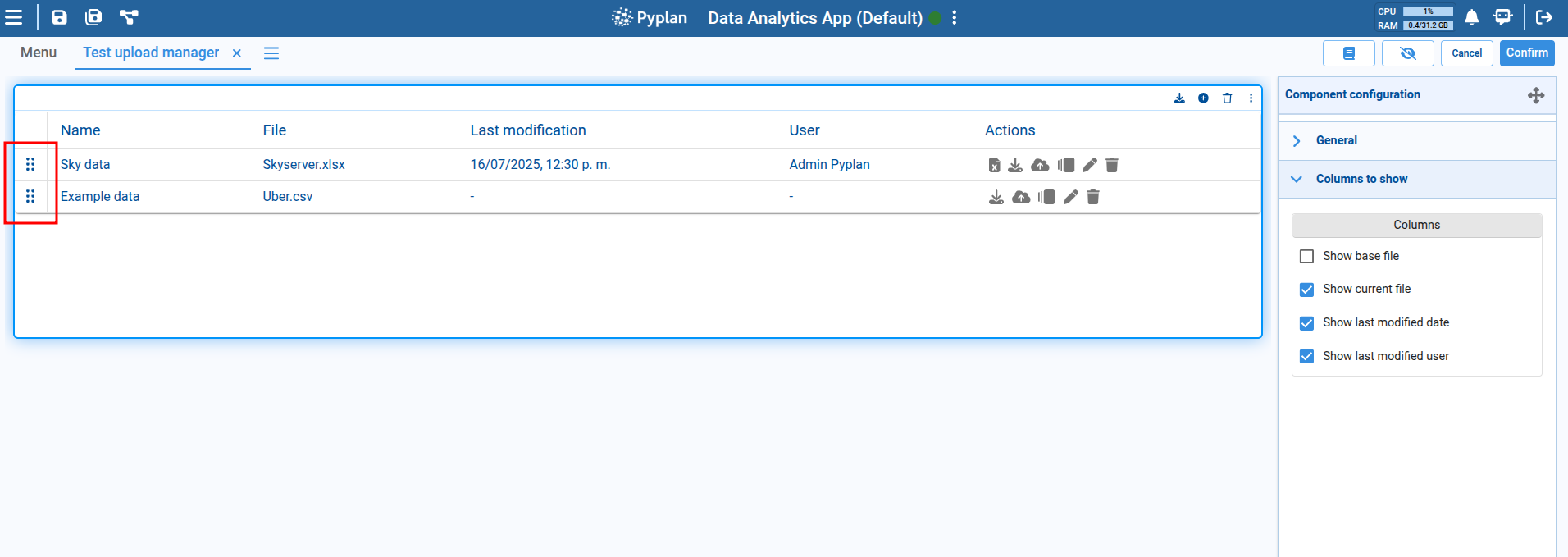
In component editing mode, you can also choose which columns to display in the component's table item list to customize the view according to the user’s needs.
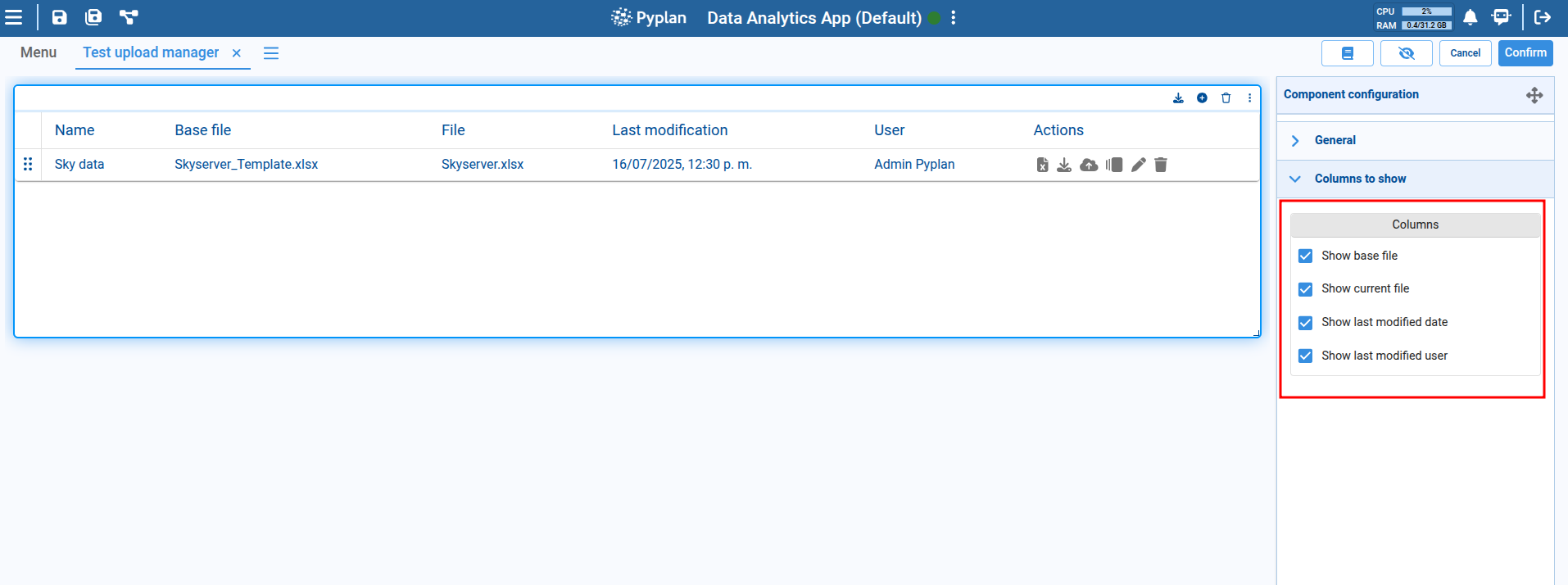
It is also possible to reorder the items in the table by dragging them to the desired position using the icon on the left side of each item in the table.