Pyplan provides a comprehensive set of security features for managing users and their permissions. Each user can be assigned access to specific companies and configured with distinct departments and roles, ensuring precise control over what they can view and modify within the platform.
¶ User manager
We manage users, roles, and departments from the User manager, available under Security options → Users.
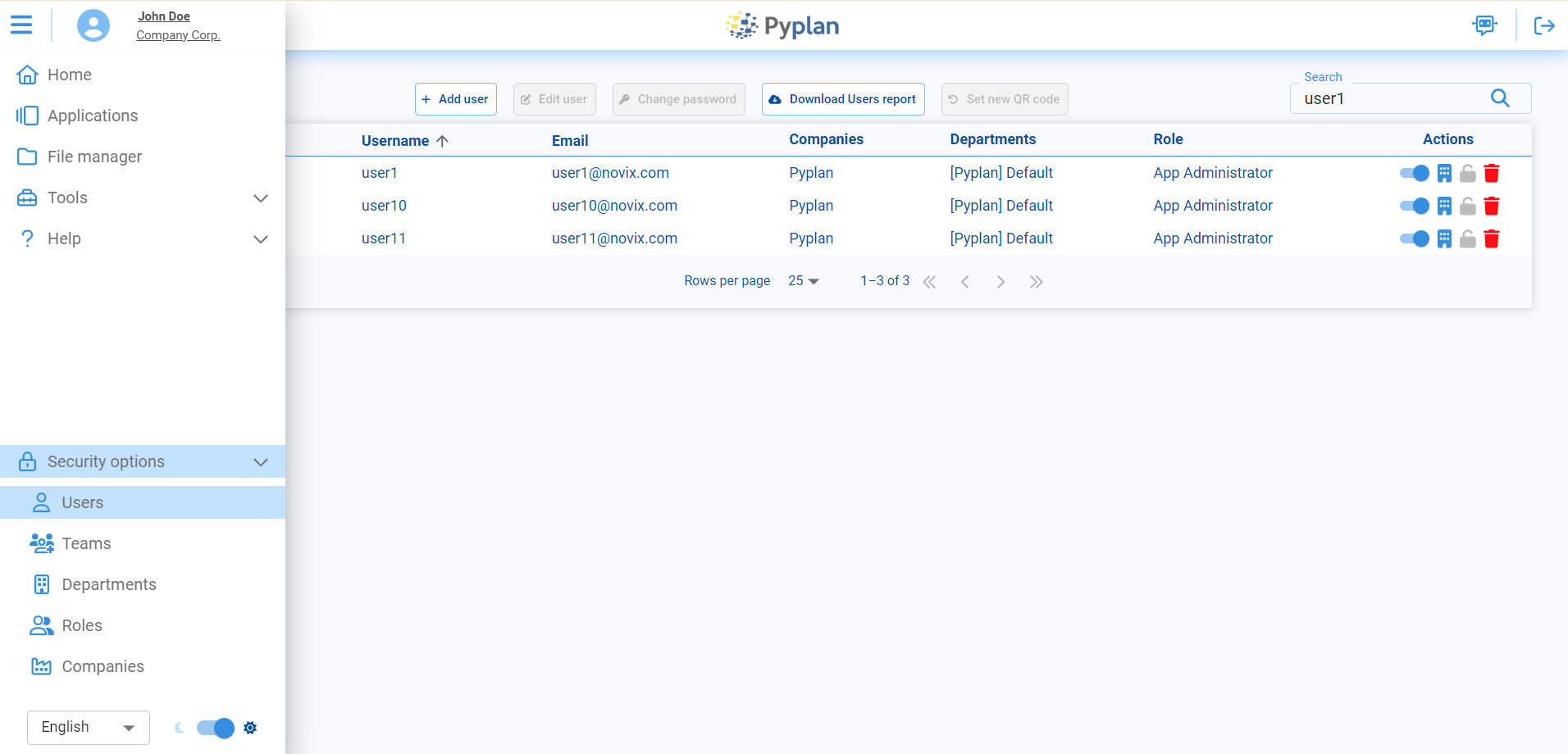
In this section we can:
- View the complete list of users for the selected company.
- Create new users (if we have the required permissions).
- Edit existing user profiles, including their roles and department assignments.
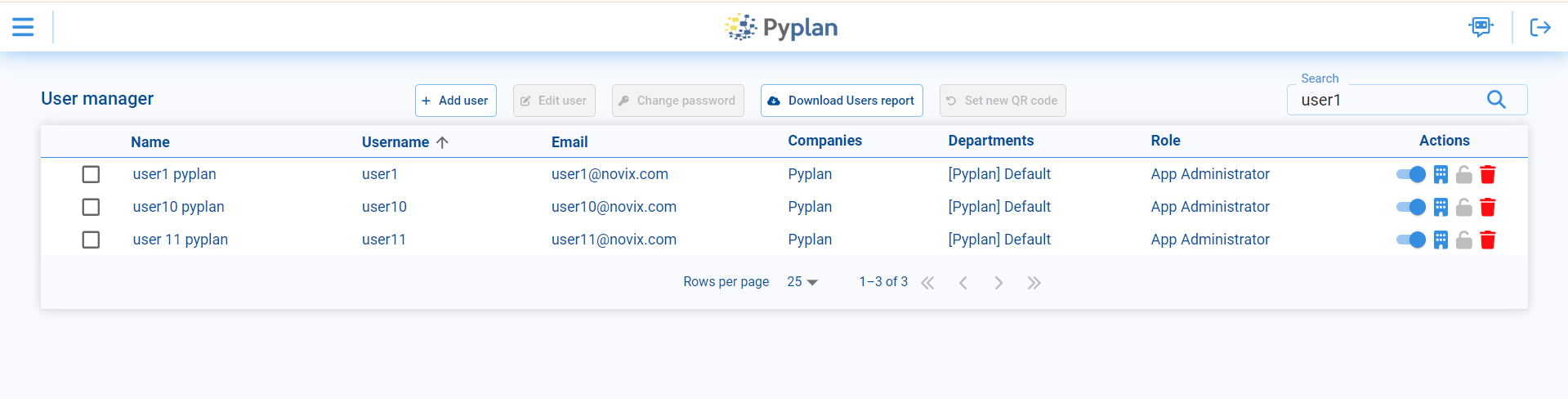
¶ User creation
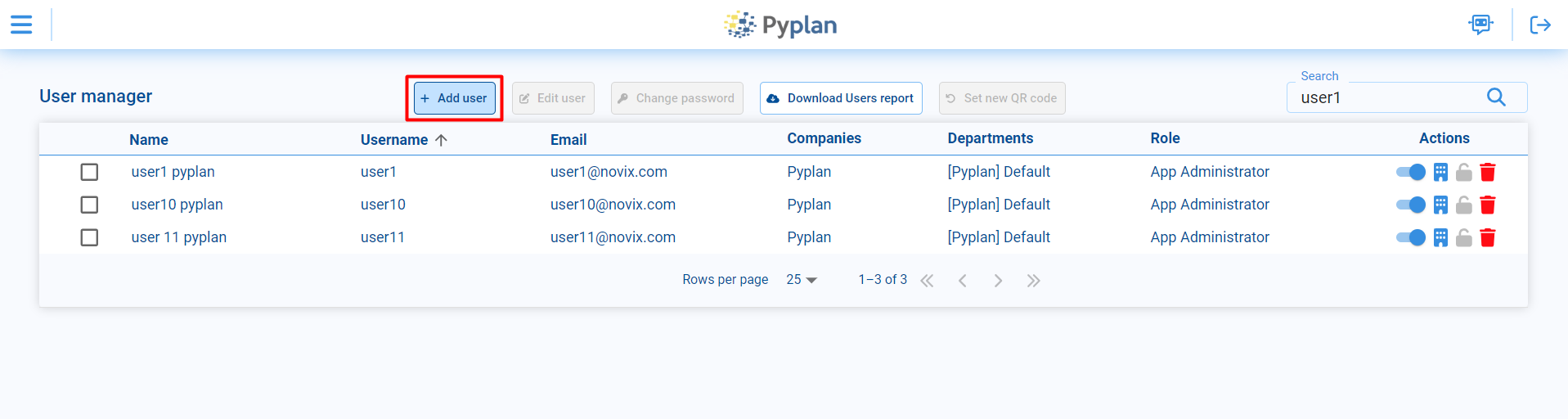
To create a new user you must access the Add user option in User manager
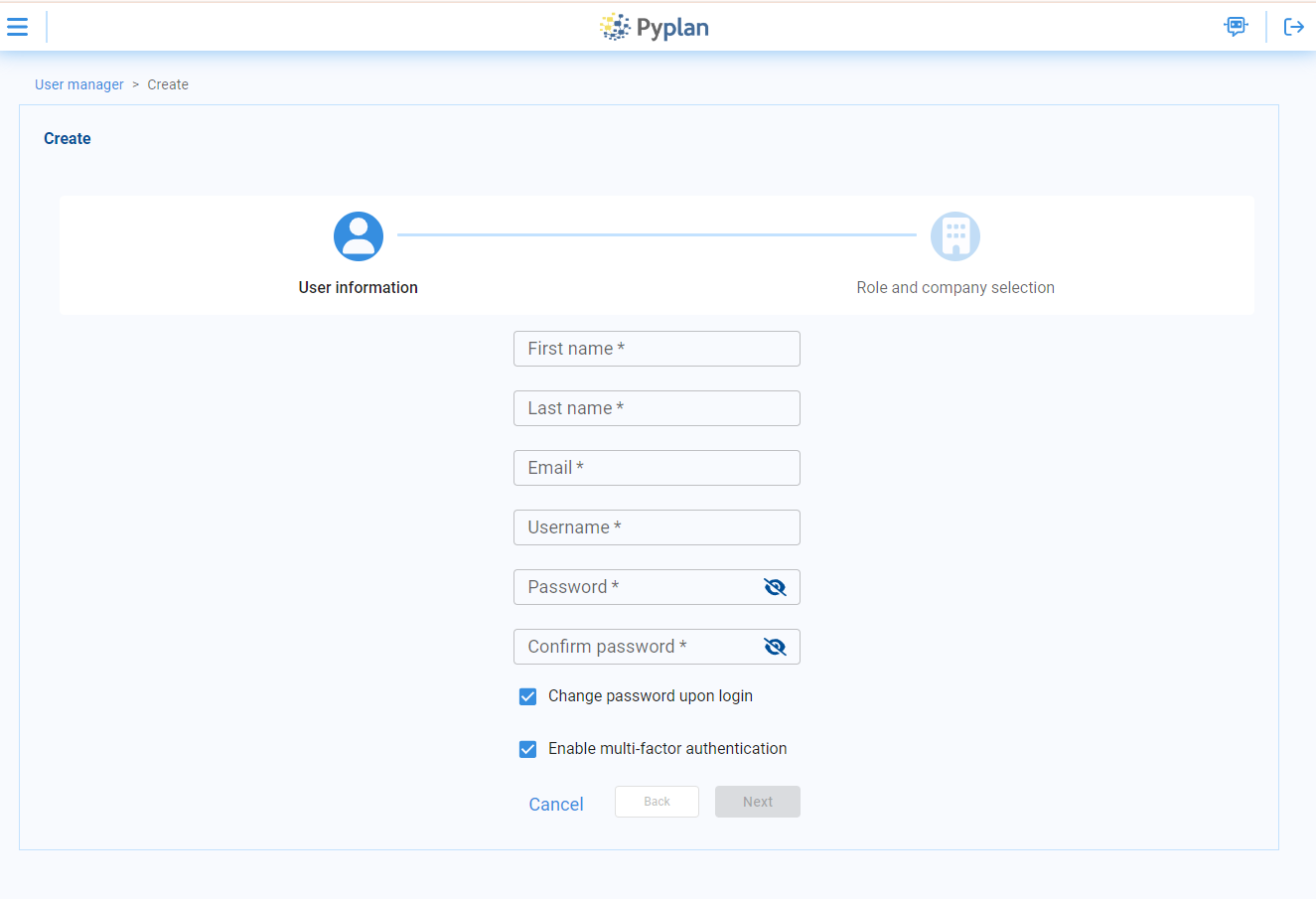
To achieve this, it is imperative to input information into the designated fields, including First Name, Last Name, Email, Username, and Password. Additionally, users have the option to choose settings such as changing the password upon login and enabling multi-factor authentication.
We must first select the main role for the user. Then we choose, for each company you want to assign to the user, the departments and role it belongs.
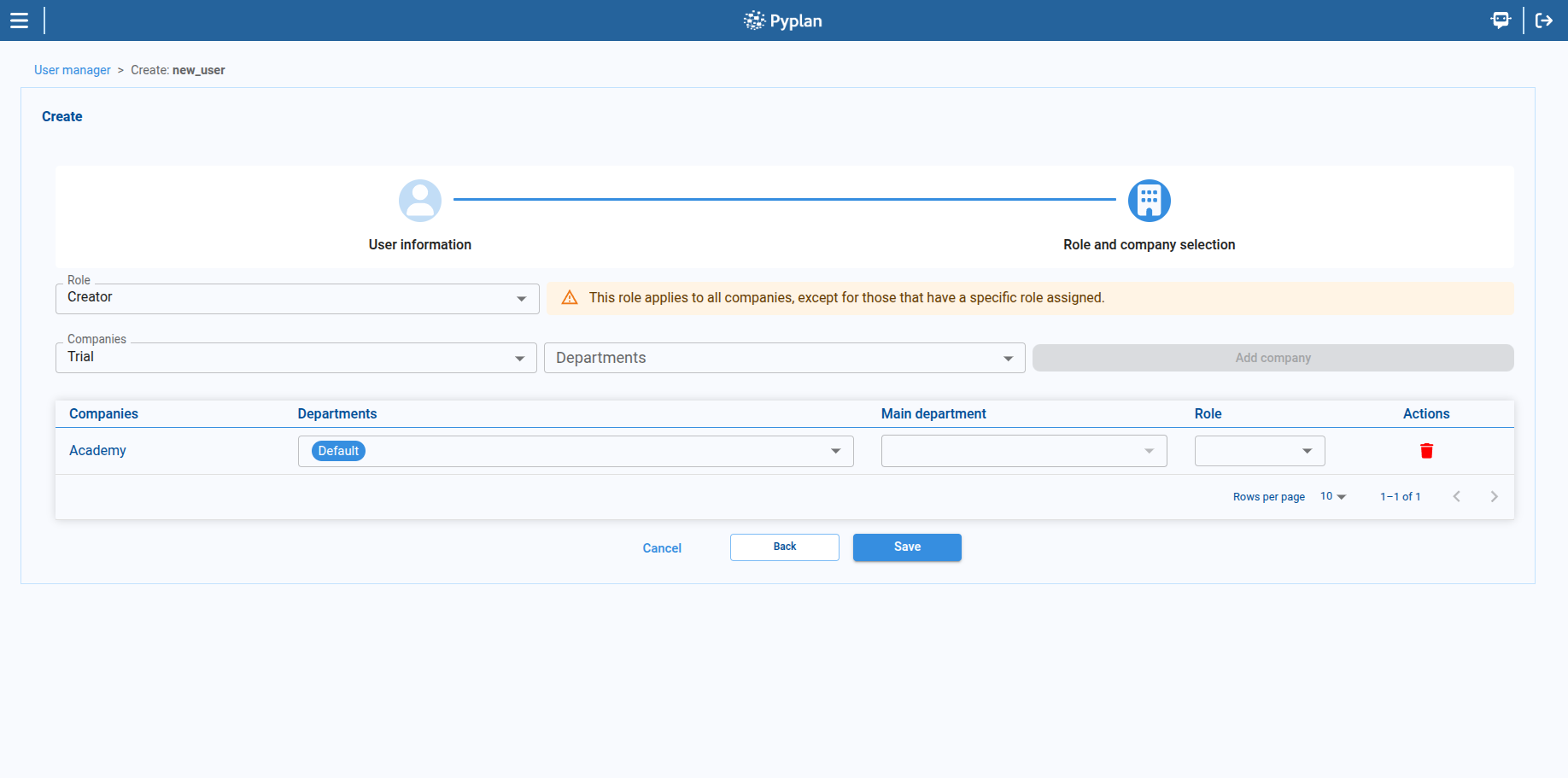
When a user belongs to multiple departments, Pyplan needs to know which department’s resources should be used when creating the user’s pod and assigning default configurations. For that we use the Main Department:
- The Main Department determines which department’s resources and defaults are applied first.
- This is specially important for users that are members of several departments.
⚠️ Note:
If a user is assigned to more than one department, we must select a Main Department.
- Users can belong to multiple departments without issues, but one of them has to be marked as the main one.
- If we do not set a Main Department, the backend will choose one arbitrarily, which may lead to incorrect behavior or unexpected resource assignments
A user may have a specific role for a given company. If so, when the user logs into that company, all permissions are determined by that specific role. If the user does not have a company-specific role, they will inherit all permissions from their main role.
¶ Edit users
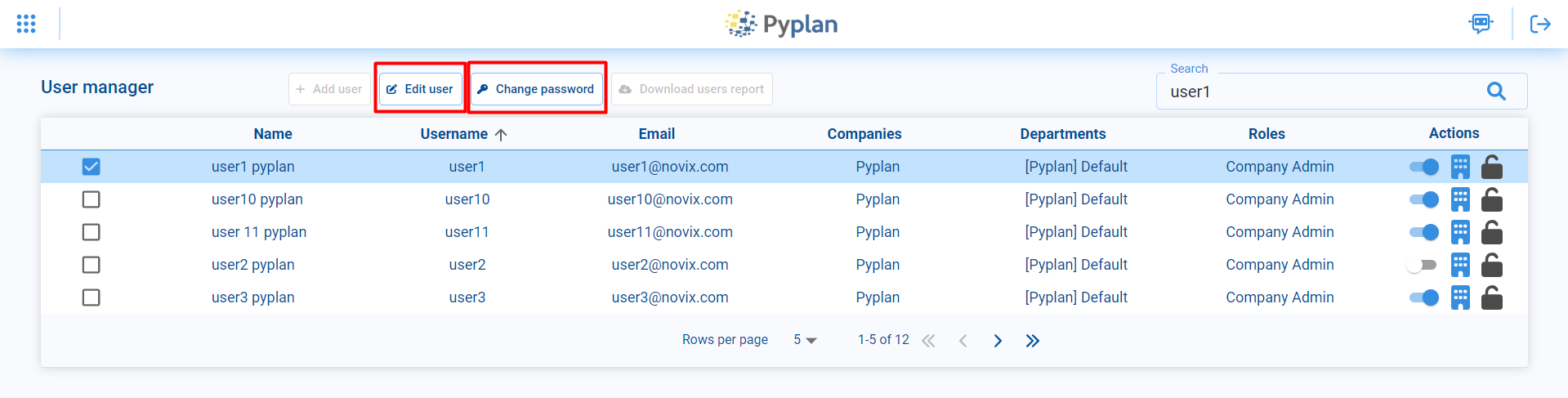
We can modify existing users from the same User manager:
- Select the user in the list.
- Use the Edit user option in the toolbar to change profile data, roles or departments.
- Use the Change password option if we only want to update the user’s password.
Changes take effect immediately after saving.
¶ Roles
A role is a collection of permissions that are assigned to a user within the platform. Roles can be assigned and customized according to the needs of each organization.
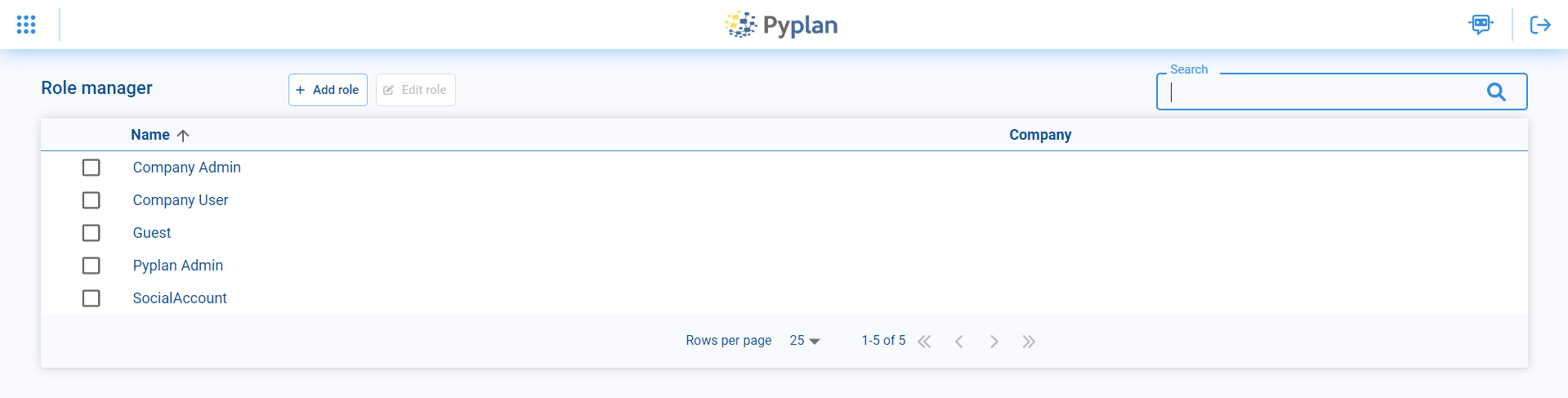
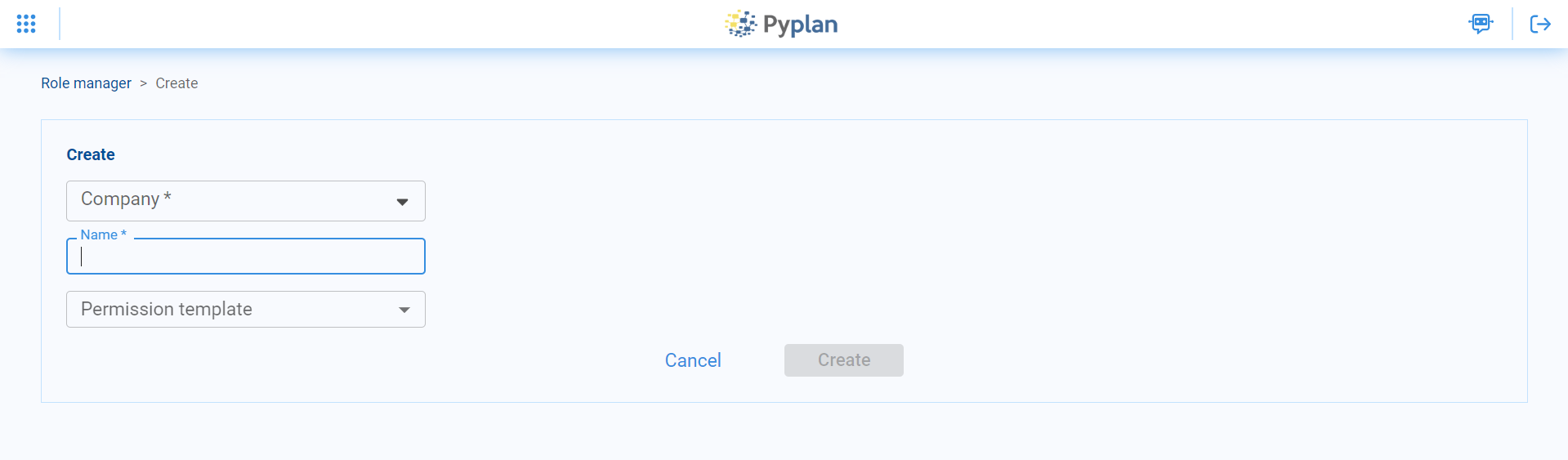
Roles are created by accessing the Add role option in the top menu. Then you must select the company to which the role will belong, the name and one of the templates that has a set of default permissions configured, which can then be modified and customized in the Permissions by role option.
¶ Permissions by role
The Permissions by role option lets us modify which actions each role can perform.
- Permissions are grouped by module, such as Applications, Interfaces, File Manager, Workflow, etc.
- Expanding a group shows the detailed permissions.
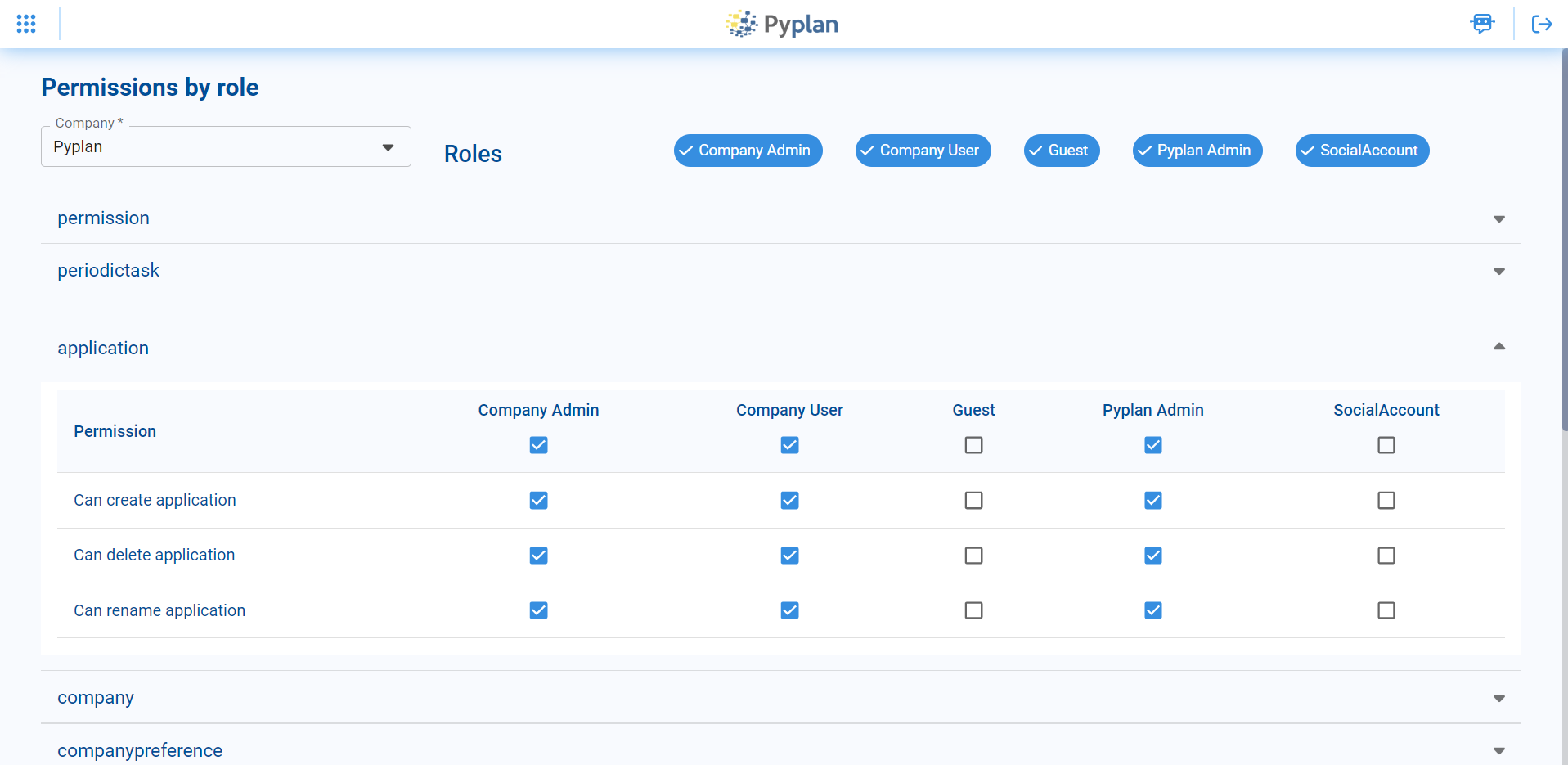
- For each permission we can enable or disable access per role by checking or unchecking the corresponding checkbox.
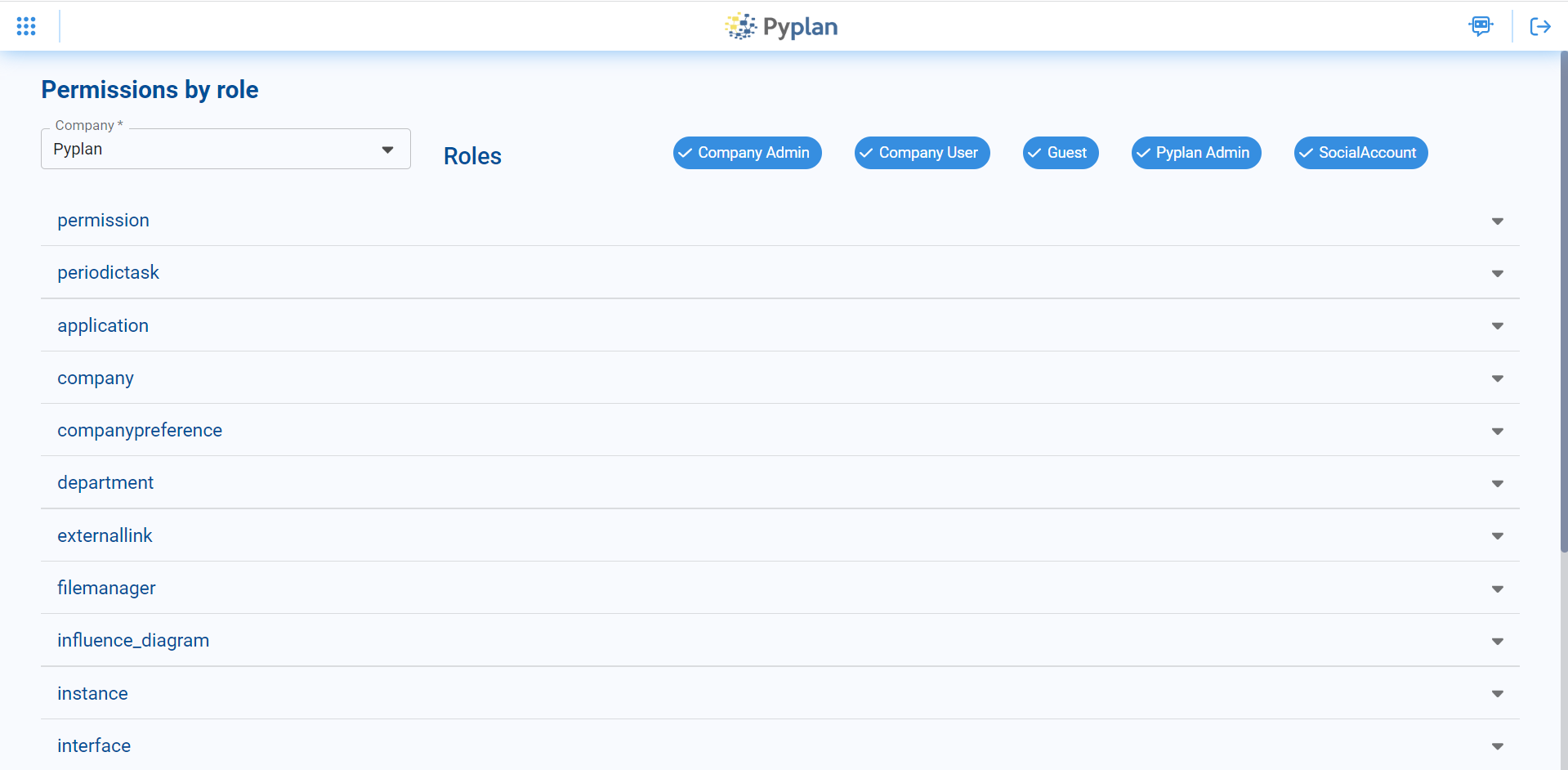
When any of the groups are displayed, the permissions are detailed and can be edited for each of the roles in the current company by checking or unchecking the corresponding checkboxes.
These are the default roles and their associated permissions in PyPlan:
| Module | Permission | Administrator | App Administrator | Creator with Public Access | Creator | Explorer | Viewer | Login Only User | Super Administrator |
| Aplications | Create apps | ✓ | ✓ | ✓ | ✓ | ✓ | |||
| Create versions and scenarios | ✓ | ✓ | ✓ | ✓ | ✓ | ||||
| View diagram | ✓ | ✓ | ✓ | ✓ | ✓ | ||||
| Save changes in app in private space | ✓ | ✓ | ✓ | ✓ | ✓ | ||||
| Save changes in Public app | ✓ | ✓ | ✓ | ✓ | |||||
| Set permissions in diagram modules | ✓ | ✓ | ✓ | ||||||
| Interfaces | View interfaces | ✓ | ✓ | ✓ | ✓ | ✓ | ✓ | ✓ | |
| Add, modify, or delete interfaces | ✓ | ✓ | ✓ | ✓ | ✓ | ✓ | |||
| Set interface permissions | ✓ | ✓ | ✓ | ||||||
| File Manager | View File Manager | ✓ | ✓ | ✓ | ✓ | ✓ | |||
| Add, modify, or delete files in private space | ✓ | ✓ | ✓ | ✓ | ✓ | ||||
| Add, modify, or delete files in Public | ✓ | ✓ | ✓ | ✓ | |||||
| Set permissions on files/folders | ✓ | ✓ | ✓ | ||||||
| View other users' folders in the same company | ✓ | ✓ | ✓ | ||||||
| View folders from other companies | ✓ | ||||||||
| External Links (API endpoints and Interface links) | Create, modify, or delete API endpoints or external links to interfaces | ✓ | ✓ | ✓ | ✓ | ✓ | |||
| Workflow | Manage processes | ✓ | ✓ | ✓ | |||||
| Teams | Add, modify, or delete Teams in the same company | ✓ | ✓ | ✓ | |||||
| Departaments | Add, modify, or delete departments in the same company | ✓ | ✓ | ✓ | |||||
| Users | Add users to the same company | ✓ | |||||||
| Modify users in the same company | ✓ | ✓ | |||||||
| Instances | View company instances | ✓ | ✓ | ✓ | |||||
| Deactivate company instances | ✓ | ✓ | ✓ | ||||||
| Roles | Create, modify, or delete roles | ✓ | |||||||
| Companies | Create companies | ✓ | |||||||
| Modify companies | ✓ | ✓ | |||||||
| General Settings | Modify General Settings | ✓ | ✓ | ||||||
| Scheduled Tasks | Create, modify, or delete scheduled tasks | ✓ | ✓ | ✓ | ✓ | ✓ |
¶ Departments
Departments control access to data and resources at an organizational level. They can:
- Restrict access to specific folders in the File Manager.
- Restrict access to certain interfaces or modules.
- Define the hardware specifications for the instances used by their members.
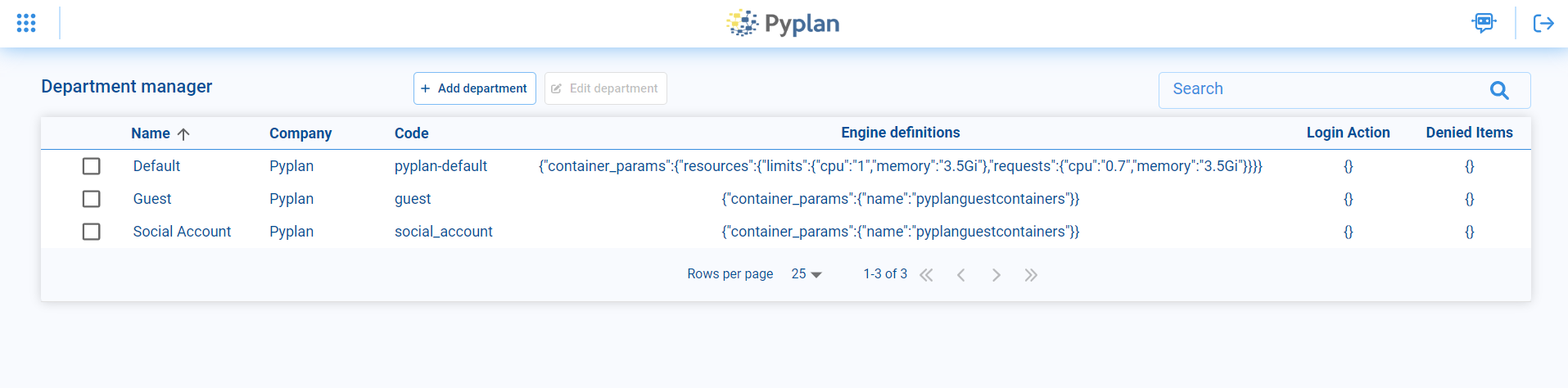
From the Department manager we can:
- View existing departments.
- Edit them.
- Create new ones using Add department, where we specify:
- Department name.
- Company it belongs to.
- Resources.

¶ Teams
Teams allow us to group users within a company so they can share applications and files only with other members of that Team.
- Each Team has its own folder in the File Manager (under the Teams folder).
- Only users belonging to the Team can access that folder and its content.

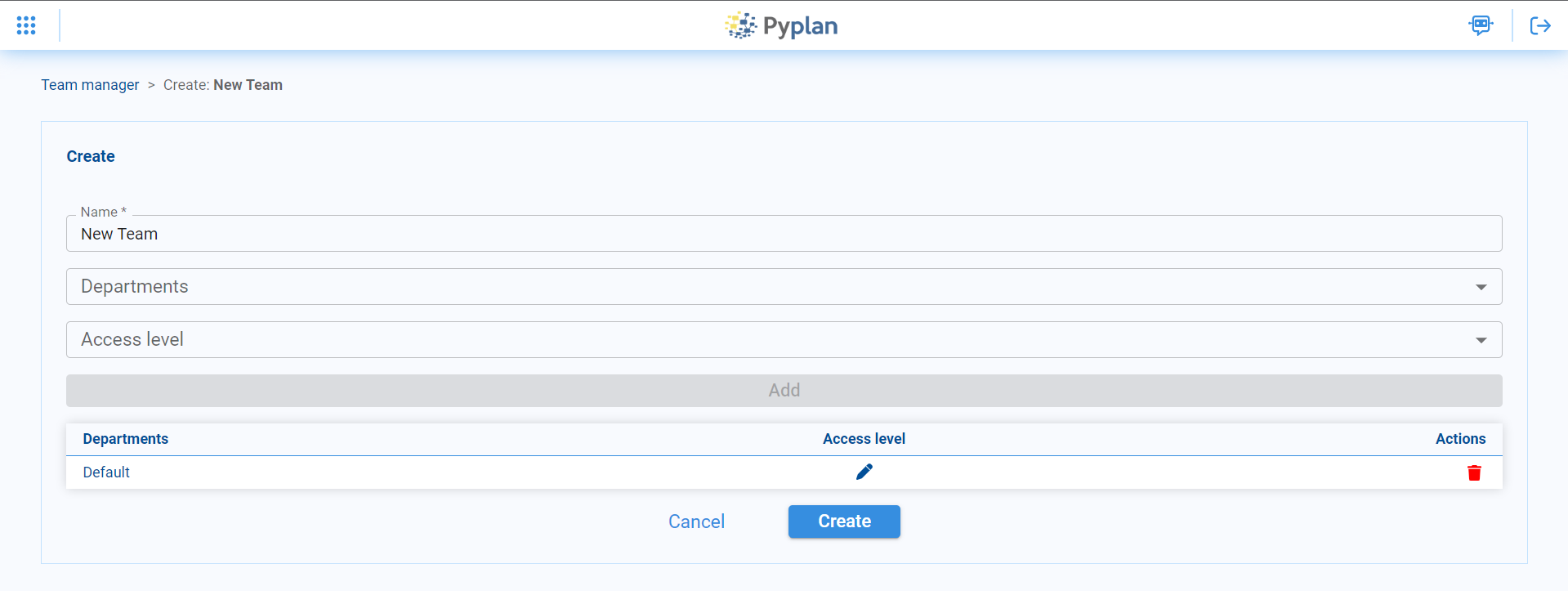
From the Team manager we can:
- View existing teams.
- Add new teams using Add team.
- For each team we define:
- The name of the Team.
- Which departments have access and with which level:
- Read‑only
- Read/Write
¶ Companies
In Pyplan, each company defines an isolated environment where its users can work together and share files and applications. From the Company manager we can create new companies and edit existing ones.
When we create a new company we must define:
- The company name.
- The folder name where all files belonging to that company will be stored.
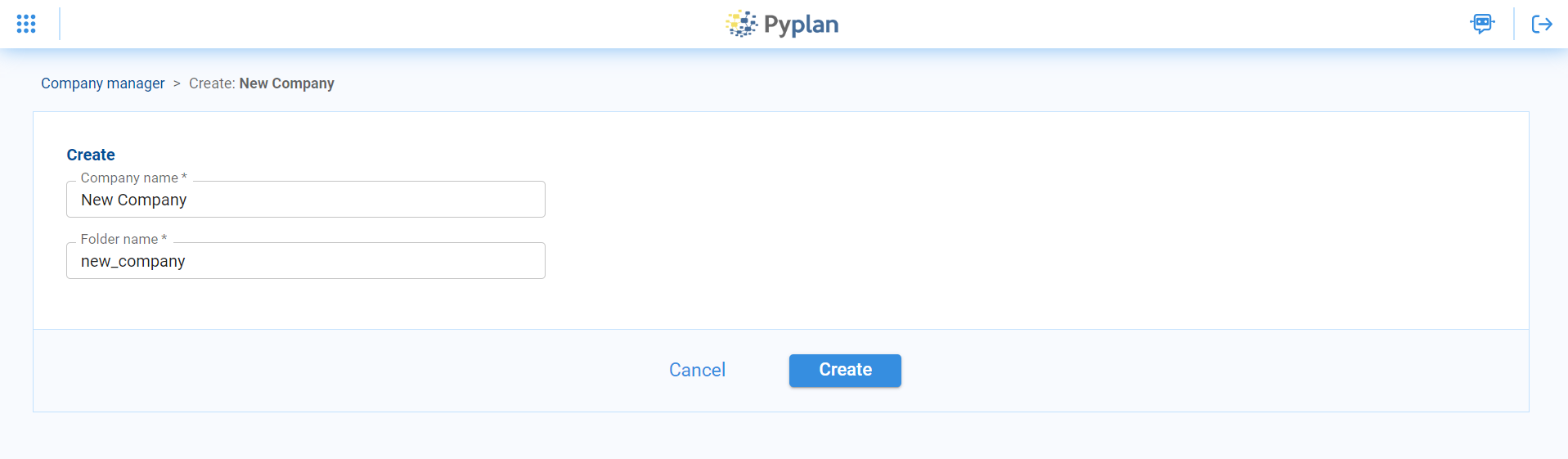
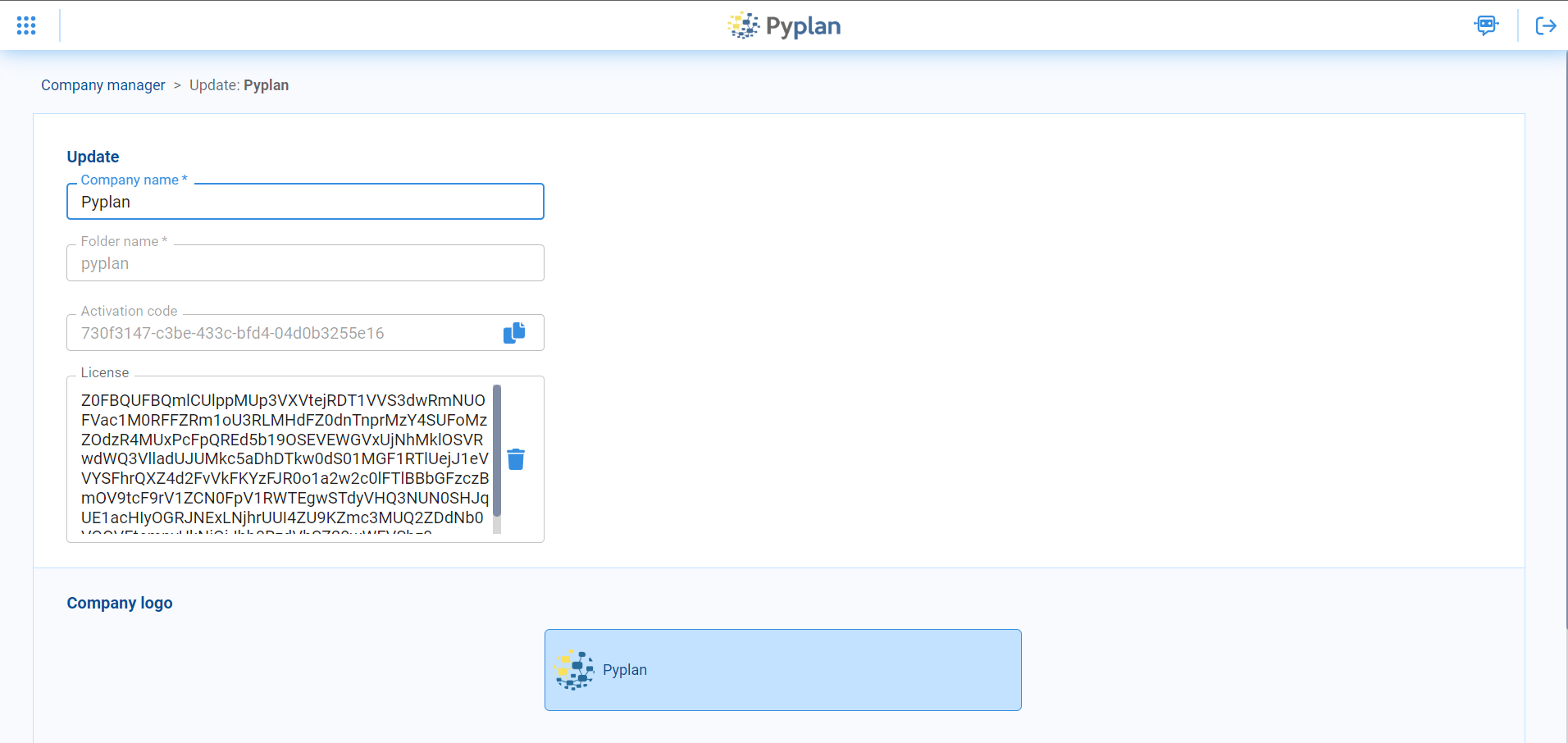
In addition, to activate a new company we must assign a Pyplan license. The license determines:
- For how long the company is enabled.
- The maximum number of users allowed for that company.
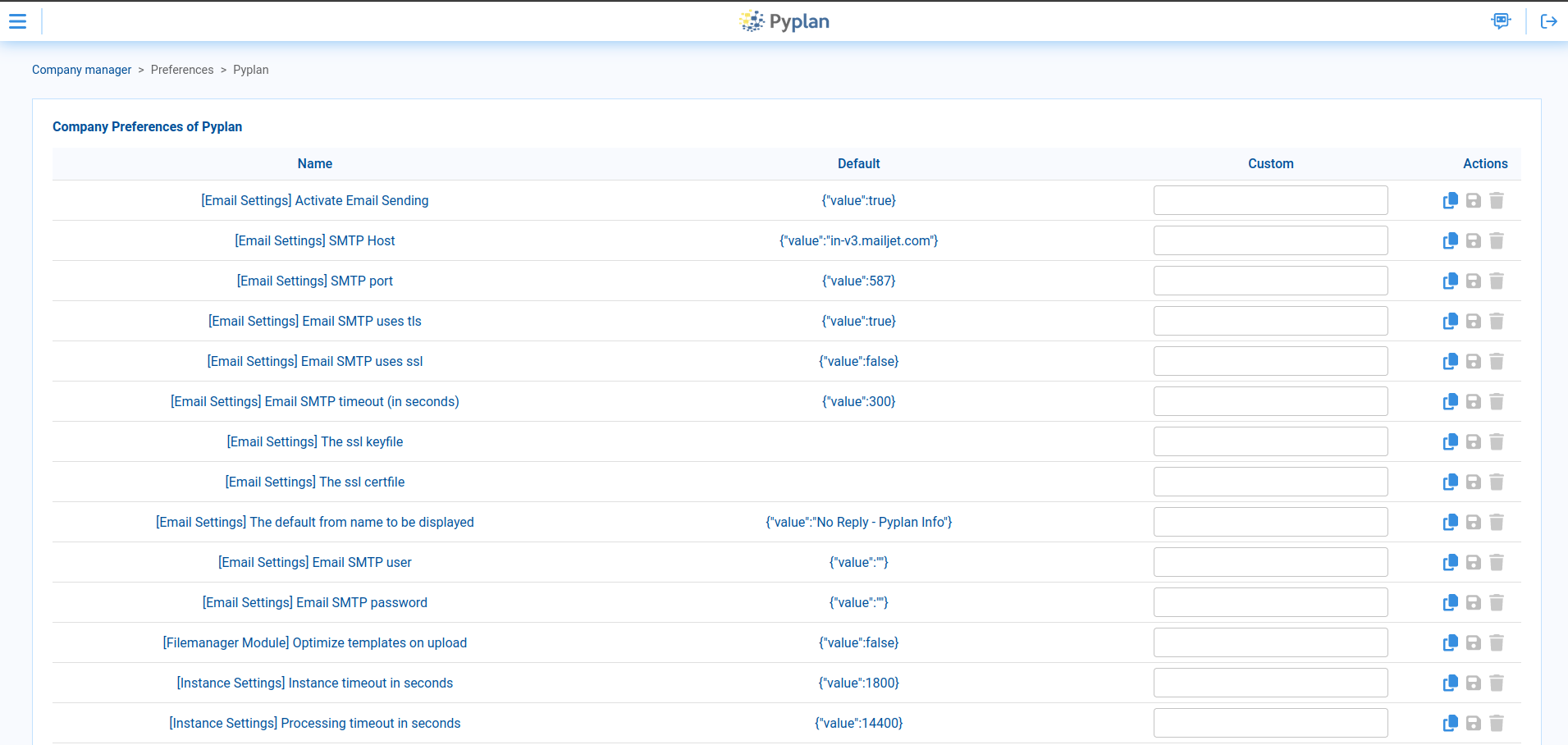
We can manage company‑level preferences by selecting a company and then clicking the Preferences button.

The preferences page lists all configurable options. Each preference is stored as a JSON value, and most of them have a predefined default.
To enable Single Sign‑On (SSO) with SAML, we must add a specific JSON configuration as a preference called SAML Configuration.

The structure of this JSON is:
{
  "groups": ["Name of Group"],
  "definition": {
    "service": {
      "sp": {
        "idp": {
        		...
            },
            "single_sign_on_service": {
              ...
            }
          }
        },
        "name": "Company name",
        "endpoints": {
          ...
        },
        "force_authn": boolean,
        "name_id_format": [
         ...
        ],
        "allow_unsolicited": boolean,
        "required_attributes": ["requiredAttr"],
        "want_response_signed": boolean,
        "name_id_policy_format": "string",
        "want_assertions_signed": boolean,
        "name_id_format_allow_create": boolean
      }
    },
    "entityid": "string",
    "metadata": {
      ...
    },
    ...
  },
  "departments": ["departmentCode"],
  "main_department": "string"
}
- groups: Defines the role (or roles) that will be assigned to the user when it is created. The values must match existing role names in Pyplan.
- definition: JSON object that contains all SAML configuration details: company name, Identity Provider (IdP) information, connection metadata and other parameters required by the IdP / Active Directory to integrate with Pyplan (Service Provider).
This can include, for example: - IdP login URL.
- Public keys used to validate SAML tokens.
- Redirect URLs for the authentication flow.
- Any additional attributes needed for authentication and authorization.
- departments: List of department codes to assign to the user when it is created. Each department must already exist in the company.
- main_department: Main department for resource usage. It must be one of the departments listed in
departments; otherwise it will not be applied.
If we need to define default roles and departments based on values coming from Active Directory, we can add another preference called Role Mapping with a JSON like:

In this case, another JSON with the following structure is added:
{
    "role": {
        "ManagerFromActiveDirectory": "Administrator",
        "CustomUserActiveDirectory": "Creator"
    },
    "department": {
        "SalesActiveDirectory": ["pyplan-default", "guest"],
        "InvitedActiveDirectory": "guest"
    }
}
- role: JSON where each key is a role name coming from Active Directory and each value is the corresponding Pyplan role to assign.
- department: JSON where each key is a department name from Active Directory and each value is one or more Pyplan departments.
The value can be a single department (string) or a list of departments.
¶ Grant/Deny access to information
In Pyplan, we can manage access permissions to specific items—such as folders, modules, and interfaces—per department.
This allows, for example, departments like Accounting and Human Resources (HR) to have different visibility and access within the same application.
¶ How it works
For each department we can either allow or deny access to selected items:
- If an item is in the allowed list, the department can access it.
- If an item is in the denied list, the department cannot access it.
Pyplan automatically resolves conflicts:
- If an item is added to the allowed list, it is removed from the denied list.
- If an item is added to the denied list, it is removed from the allowed list.
Examples:
- Accounting is allowed to access Folder A but denied access to Interface X. They can see everything under Folder A, but they cannot open or use Interface X.
- HR may need access to an Employee Management module. Once this module is allowed for HR, it is removed from any denied lists for that department.
¶ What you can control
For each department we can manage access to:
- Interfaces and interface folders
- Folders in the File Manager
- Modules in the influence diagram
¶ Example scenario 1: Configuring permissions for interfaces
From the Interface Manager we can:
- Select one or more interfaces whose access we want to change (as shown in the related image).
- Open the permissions dialog.
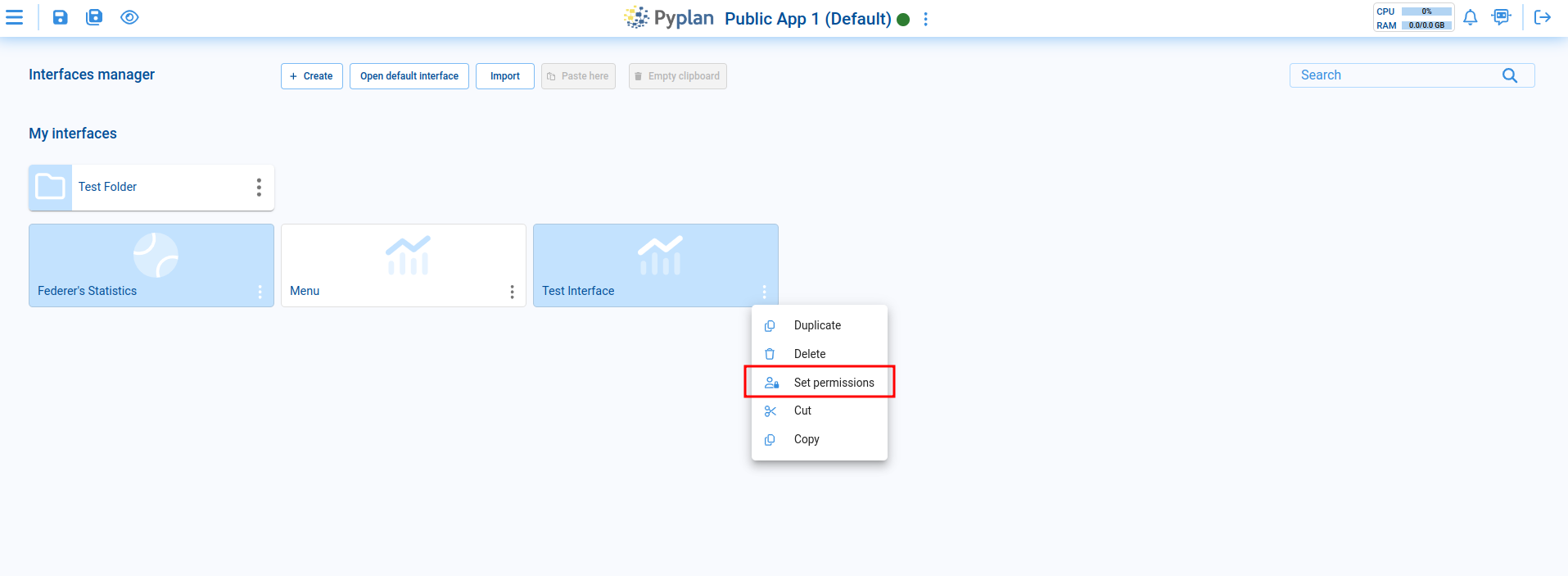
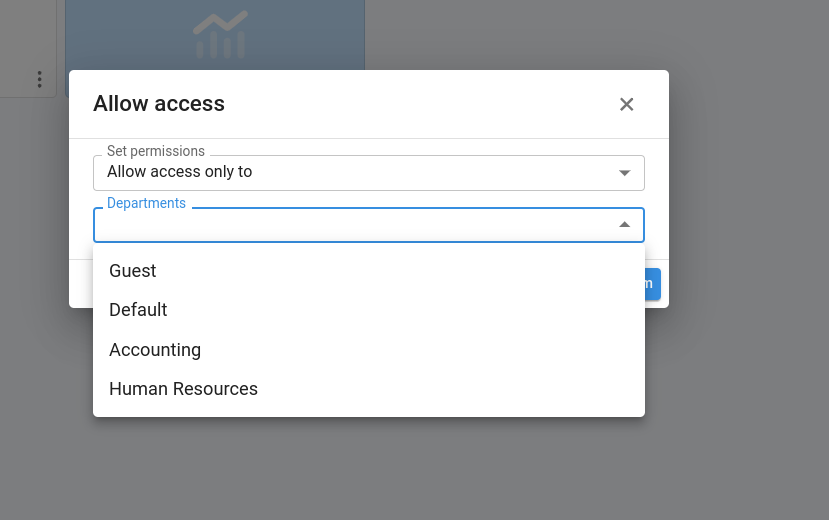
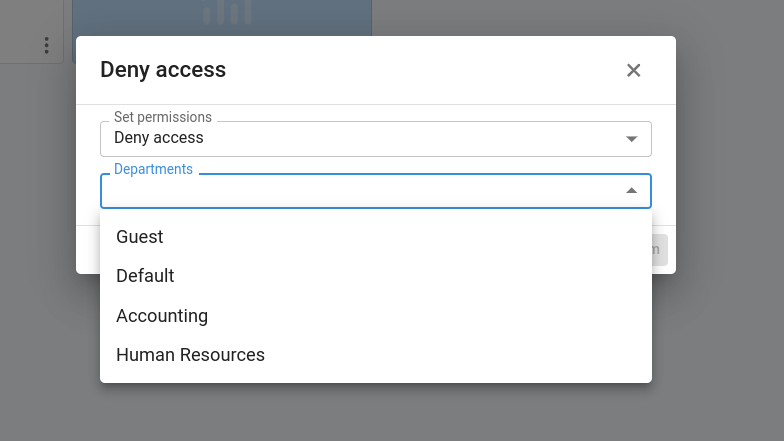
The dialog lets us choose between:
- Deny access to selected departments, or
- Allow access only to selected departments.
Only one of these modes can be active at a time. If the interface already had permissions configured, the new settings will override the previous ones.
After we apply the change:
- The interface shows a padlock icon to indicate that it has restricted access.
- Permissions for interface folders can be configured in the same way.
¶ Example scenario 2: Configuring permissions in the File manager
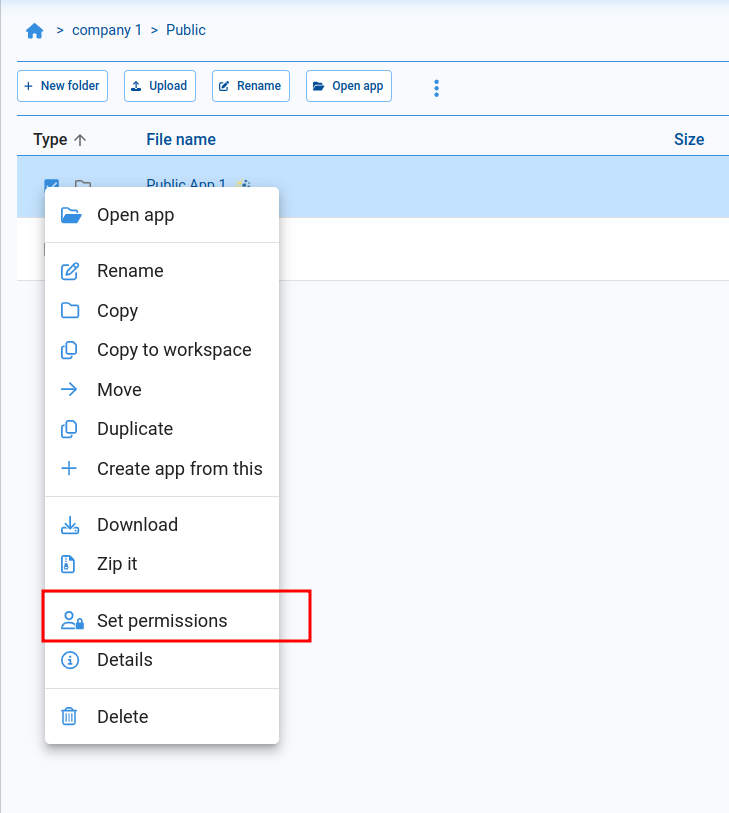
In the File Manager, the process is similar, with one difference: we can restrict only one folder at a time.
- Navigate to the folder we want to restrict.
- Open its options menu, as shown in the image.
- Use the same permissions dialog as in the Interface Manager.
The dialog lets us choose between:
- Deny access to selected departments, or
- Allow access only to selected departments.
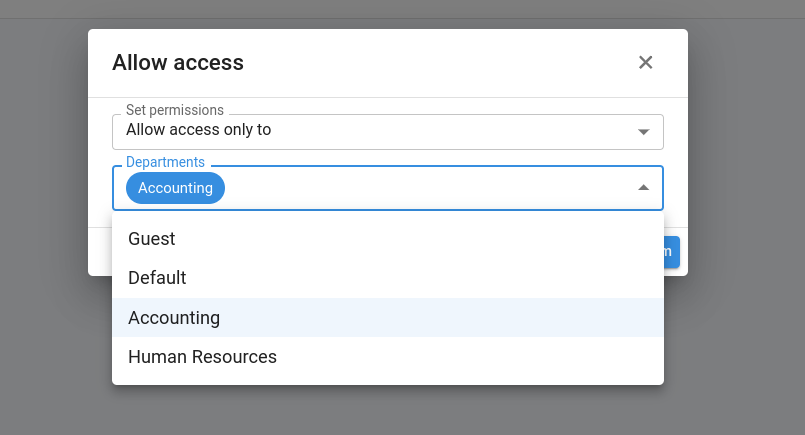
Example: we configure the folder for application “Public App 1” so that only users whose department is Accounting can see it:
- Users in Accounting see and can open “Public App 1”.
- Users from other departments do not see this application in their file space.
- If a user belongs to Accounting and HR, they still have access because they are members of Accounting.
¶ Example scenario 3: Configuring permissions for modules
To restrict access to diagram modules:
- Select one or more modules in the influence diagram.
- Right‑click any of them to open the context menu.
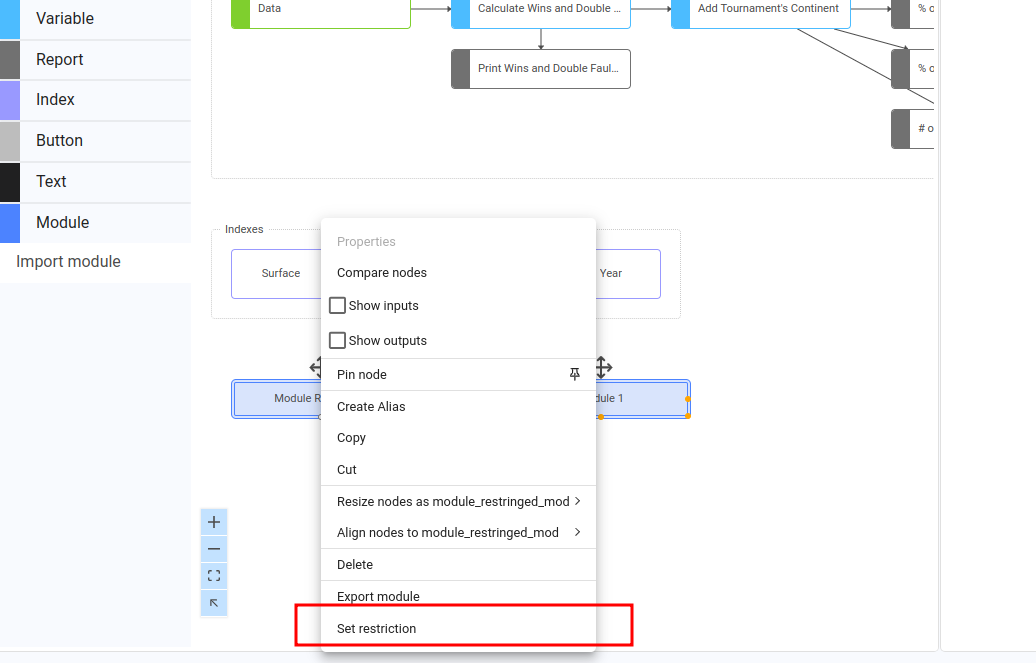
The dialog lets us choose between:
- Deny access to selected departments, or
- Allow access only to selected departments.
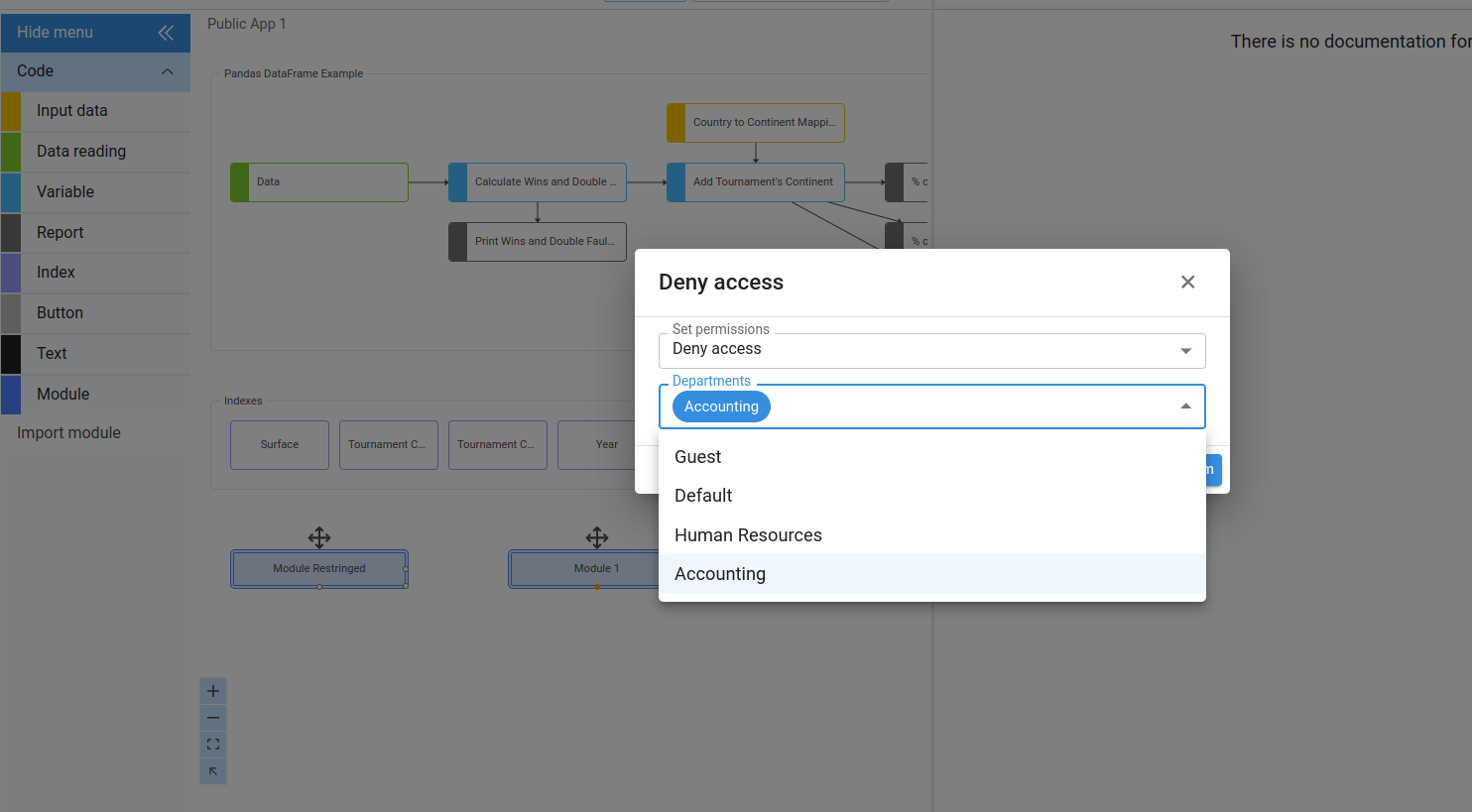
In the illustrated case, access to two modules is denied for the Accounting department. When Accounting users open the diagram, those modules are hidden and cannot be accessed or edited.